Tag: question bank

Winter 2026 Hack/Doc Fest at Connecticut

CLAMP held its Winter 2026 Hack/Doc Fest at Connecticut College in New London, Connecticut. This was CLAMP’s second visit to Conn College, after the Winter 2024 Hack/Doc Fest. The primary focus this time around was the new Moodle 5.1 release, plus follow-up on the issues with the question bank in Moodle 5.0. In addition to this overview, please see our separate posts on data privacy and the safe exam browser.

Issues specific to Moodle 5.1

Question bank

The changes to the question bank in Moodle 5.0 required their own separate blog post to hash out. On the whole, folks felt better about the question bank in Moodle 5.1. That said, there are still some issues to be aware of.

Sharing question banks from the course level

We evaluated how to share question banks (QB) between courses now that there are no category-level question banks. In this example, we have Course 1 and Course 2 taught by Teacher 1 and Teacher 2. Teacher 1 can create a course-level QB in Course 1. Then they join Course 2 as a Teacher and import a quiz from Course 1. This quiz has 3 questions from the Course 1 course-level QB. Teacher 2 cannot edit those questions. Course 2 also does not have full access to the course-level QB in course 1.

If Teacher 1 edits a question in this quiz from their one in Course 1, it is also changed in the instance in Course 2. In the case that the quiz has been attempted, the Teacher 1 can change the the question. The student who had attempted the quiz still sees the original question, but future students will get the new version of the question unless the faculty explicitly chooses the question version in the Quiz settings.

If Teacher 2 duplicates the quiz, then they get a copy of the quiz but the questions are copied into a new “System shared question bank” in Course 2. Teacher 2 can edit that copy of those questions. But it is strange that they are dumped into a “System shared question bank” rather than in a quiz-specific question bank.

Restoring quizzes from Moodle 4.5 to Moodle 5.1

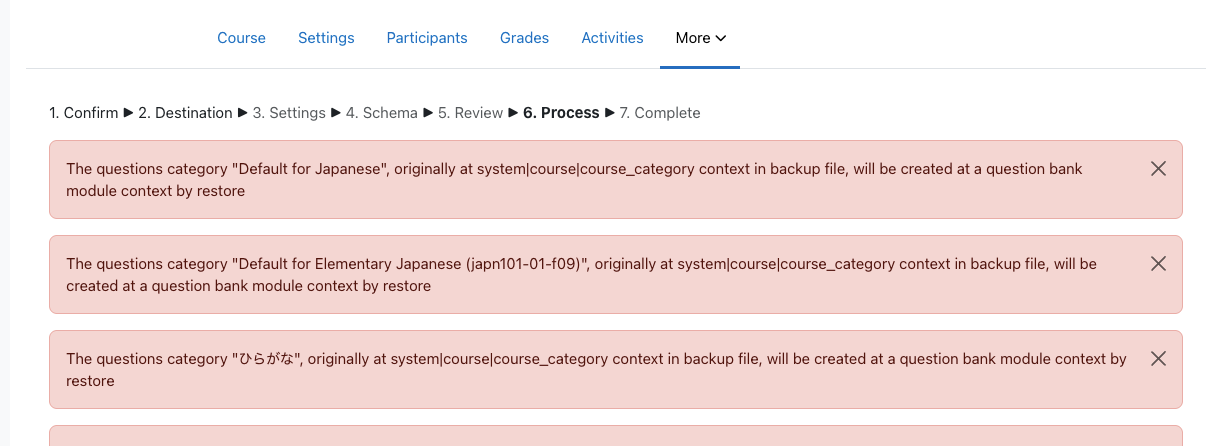
There are still some challenges with importing quizzes from Moodle 4.5 to Moodle 5.1. We tested with quizzes from a school’s production 4.5 instance. The first issue is that we saw a number of non-fatal errors that nevertheless had the red background that usually indicates a more serious issue:

Moodle displaying a series of non-fatal errors when importing questions
Category-level questions will be stored course-level question banks

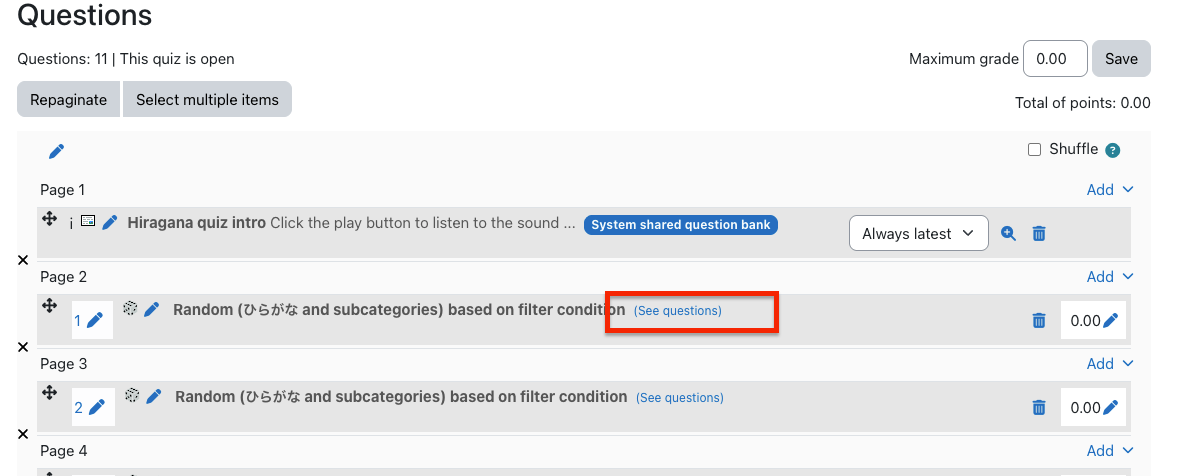
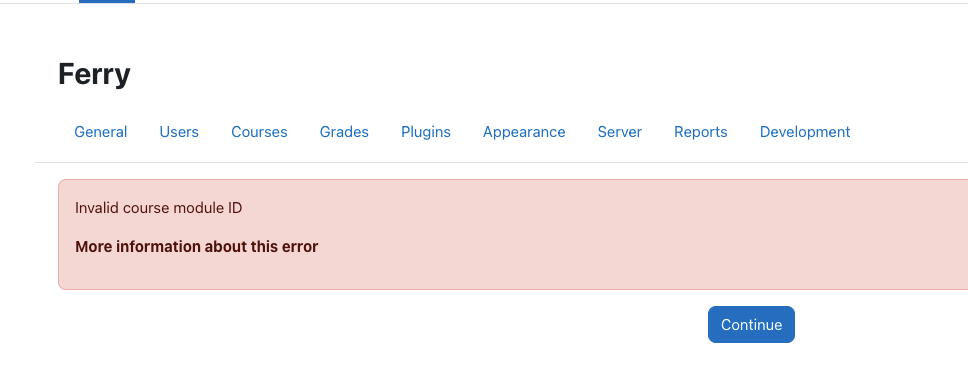
These are all questions that were heretofore stored at the category level. Some of these questions contained Random questions from specific categories. The questions appear to load, but clicking on the “See questions” link on the Random Questions causes a fatal error:

Moodle question bank with list of questions

Moodle fatal error about invalid course module ID

As of yet, we cannot view the list of questions in the categories for these quizzes. The course-level question bank shows the list of quizzes, but clicking on them takes you to the quiz itself, and does not show you the list of questions in the category from which these Random questions are pulled.

Regular multiple-choice questions are labeled with “System shared question bank.” However, if I go to the course-level question banks, even though I see a System shared question bank (created from previous testing), the imported multiple-choice questions are not there. Site home does not have any question banks.

Conclusion: the questions are clearly there. But they are “hidden” in some kind of secret question bank. Use extreme caution when importing quizzes from previous versions into Moodle 5.1.

Activity overview

Activity overview is another feature that saw changes in Moodle 5.0 and was further improved in 5.1. It’s been extended to include dates and completion information for BigBlueButton, Choice, Database, Forum, Glossary, H5P, Lesson, SCORM and Quiz in addition to Assignment, Feedback, Resources, and Workshop.

Admin search improvements

Moodle carried out research into the information architecture (IA) of the site administration interface. Among other outcomes, this research identified a need to improve search within the administrative interface. The first improvement to land is MDL-85518, returning search results in a more intuitive order.

Server configuration

For self-hosted schools, Moodle has made a major change in its code layout for the 5.1 version. This is done to permit the introduction of the “router” feature and prettier URLs. Most of the public code that was previously in the root of the code base is now in a public subdirectory. Your config.php still lives in the root. Also still in the root is admin/cli/ with various tools, including cron.php. You’ll need to make various one-time adjustments to your deployment to accommodate these changes. Included below is the Apache configuration for CLAMP’s Moodle 5.1 test environment:

<VirtualHost *:443>
    ServerAdmin admin@clamp-it.org
    ServerName ferry.clamp-it.org
    DocumentRoot /var/www/ferry/site/public

    ErrorLog ${APACHE_LOG_DIR}/ferry-error.log
    CustomLog ${APACHE_LOG_DIR}/ferry-access.log combined

    <Directory "/var/www/ferry/site/public">
        AllowOverride None
        Require all granted
        DirectoryIndex index.php
        FallbackResource /r.php
        <FilesMatch \.php$>
            SetHandler "proxy:unix:/run/php/php8.3-fpm-ferry.sock|fcgi://ferry/"
        </FilesMatch>
    </Directory>

    <Proxy "fcgi://ferry/">
    </Proxy>

    SSLCertificateFile /etc/letsencrypt/live/ferry.clamp-it.org/fullchain.pem
    SSLCertificateKeyFile /etc/letsencrypt/live/ferry.clamp-it.org/privkey.pem
    Include /etc/letsencrypt/options-ssl-apache.conf
</VirtualHost>

Section limit deprecation

Moodle has deprecated the maxsections configuration setting; going forward there will be no limit to the number of sections a teacher can add to a course. Out of curiosity, we used Moodle WebService Manage Sections plugin to bulk add 500 sections to a course (ironically, that plugin hasn’t be updated to reflect the change to maxsections). The course and navigation were functional afterwards.

Manual enrollment notifications

Manual enrollment notifications are sent immediately regardless of whether the enrollment is active. This has to do with how enrollment status is tracked in the database. There are only two states: enrolled or suspended. The start and end times are tracked separately. Moodle calculates whether an enrollment is active based on the time constraints, but it doesn’t go back to the database. It would be onerous for cron to check every minute whether an enrollment has become active.

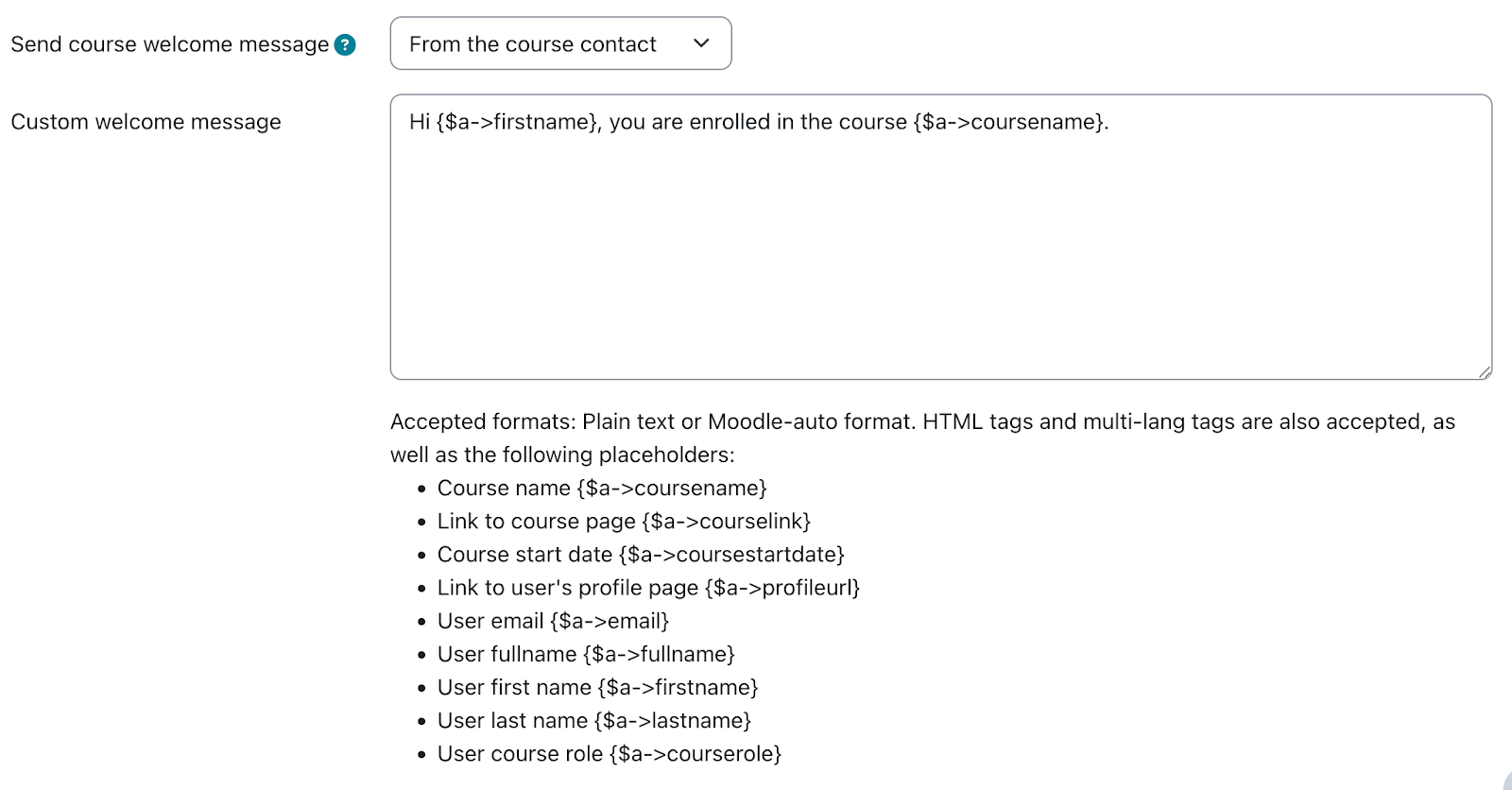
That does leave the question of the message to the user. The default message for a new manual enrollment, as defined in the language string enrol/customwelcomemessageplaceholder, is this:

Hi {$a->firstname}, you are enrolled in the course {$a->coursename}.

Moodle allows teachers to override this on a per-course, per-enrollment method basis. It’s buried in the course navigation, in Course > Participants > Enrolment methods > Self enrolment (or Manual enrolment), if you edit the method. Moodle provides numerous placeholders for programmatic customization:

Moodle string customization interface with different placeholders

One thing that’s missing here is the enrollment start date, as opposed to the course start date. Moodle 5.1 added the ability to set an arbitrary state date for a manual enrollment. We’ve proposed a change (MDL-87665) to make that value available to the message customization.

Activity chooser

The activity chooser has a new look and feel. You can still “star” activities, which are now grouped functionally: Assessment, Collaboration, Communication, Resource, and Interactive content. These categories are fixed and can’t be modified. New activities are added to “All.”

Other issues

Phantom grading changes in the gradebook

There is a bug in Moodle that can lead to unexpected changes in the gradebook. When using Google Chrome, with grader editing turned on, if a user uses two-finger scroll or mouse wheel scroll they can change grades unintentionally if the cursor was hovering over a grade cell. On CLAMP’s development environment we could only reproduce this if the user’s browser had the Lastpass extension enabled. Macalester can reproduce the issue in production without the extension.

Core is tracking the issue in MDL-86837. A workaround is to add the following Javascript snippet to Site administration > Appearance > Additional HTML section > Before BODY is closed:

<script>
document.addEventListener("wheel", function(event) {
if (document.activeElement.type === "number") {
document.activeElement.blur();
}
});
</script>

Ongoing issues with group overrides on assignments

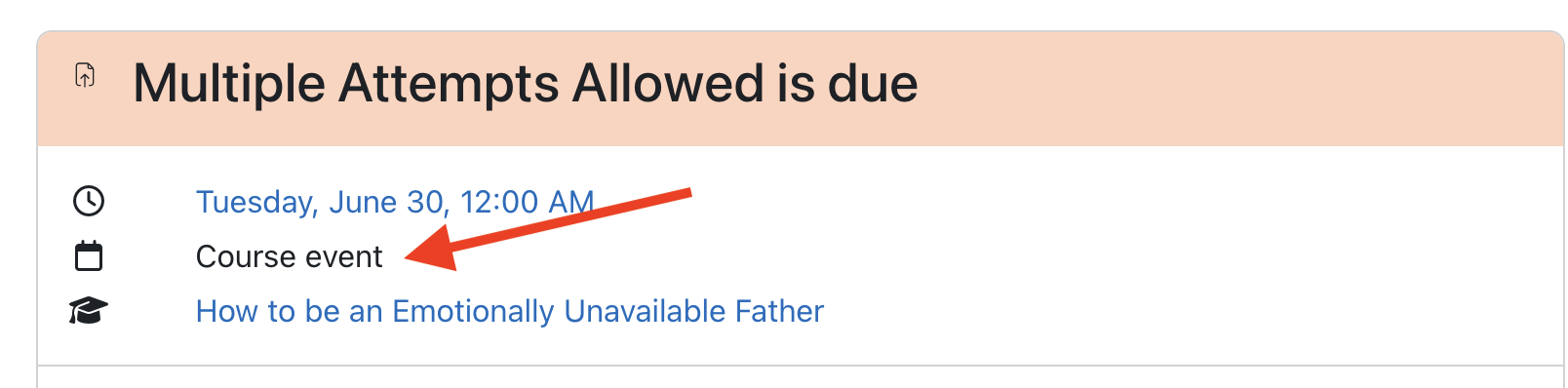
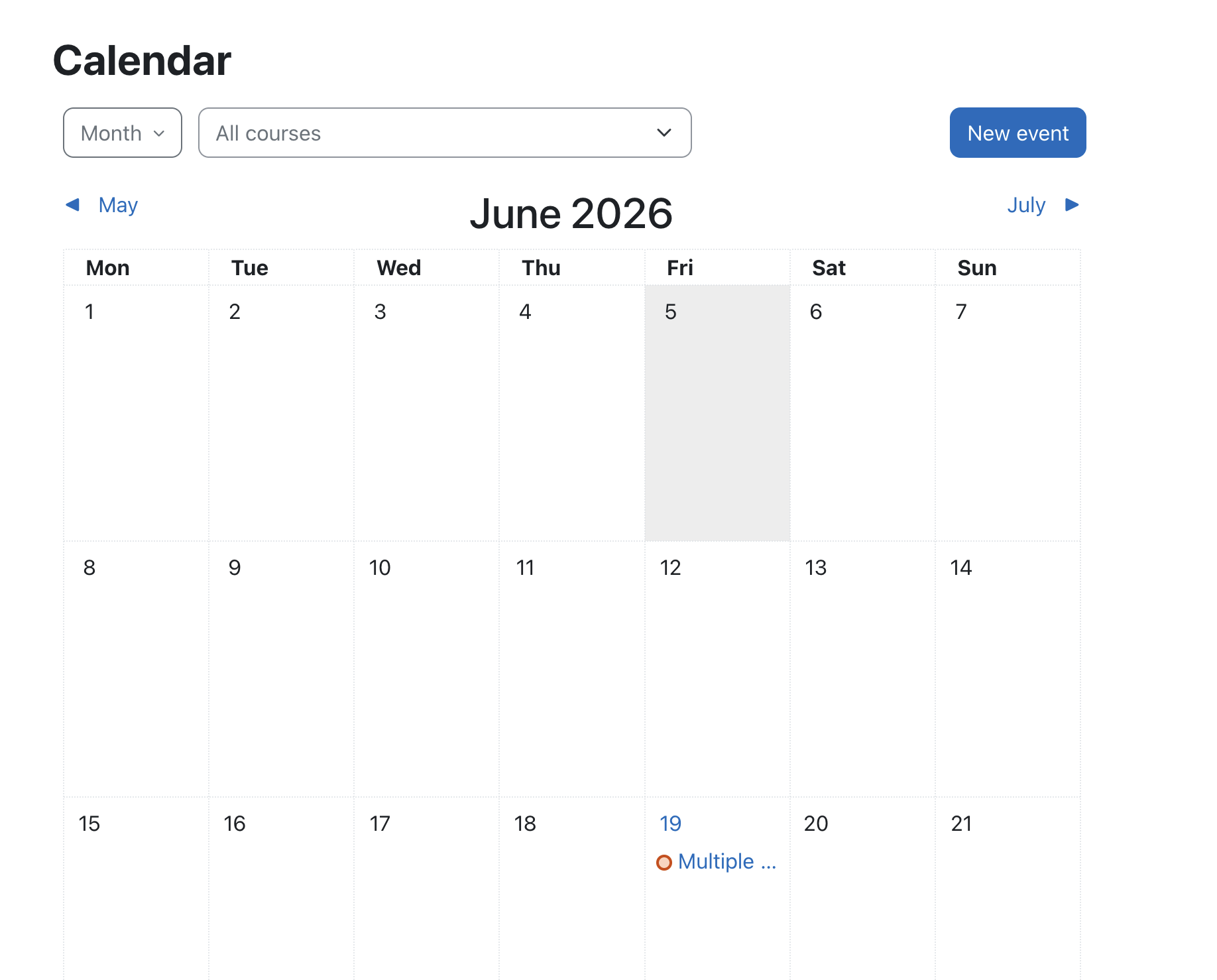
We documented some issues with group overrides in assignments at the Summer 2025 Hack/Doc Fest (“Overrides don’t appear properly at times“). There’s another issue, MDL-81004, related to how overrides appear on the timeline in the dashboard.

Here’s an example of the issue in question. Create an assignment with a default due date of midnight, 7 days from today. Create a Group Override and change the due date to be one month later. (Don’t do this testing in February because the shorter month might make it weird). This means the overridden due date is more than 30 days into the future.

Now, log in as a student in the date override group and navigate to the dashboard (in default config) so that the Timeline and Calendar are visible. Given that the calendar is showing the current month and the timeline is set to next 7 days; on the Timeline and calendar the original due date is shown, not the overridden date.

As the student, change the timeline to next 30 days, and the wrong due date (not applying the override) will still appear on the timeline. Still as the student, change the calendar to next month and timeline to next 60 days. Calendar and timeline will now show the override.

Quiz pre-creation

Moodle added a feature in 5.0 to “pre-create” quiz attempts prior to the quiz becoming available. This can potentially reduce performance issues with large quizzes. This must be enabled in Site administration > Plugins > Quiz > General settings. A range of 1-24 hours may be selected for when attempts are pre-created. These settings are sitewide and cannot be changed by teachers. Once the attempts are created the student receives a notification and the quiz cannot be modified.

Data privacy

Please see Using the Moodle data privacy feature for data export for a discussion of using the data privacy features for student data export.

Safe exam browser

Please see Safe Exam Browser integration within Moodle for a discussion of the current state of the Safe Exam Browser integration in Moodle.

Sanitizing courses of student data

We tested the possibility of retaining a course for historical reasons but removing the student data after a period of time because of FERPA concerns over data retention. Moodle has a course reset function available in the interface. The moosh cli package includes a course-reset command which permits automating this functionality. The course-reset command may be combined with the course-list command to output all courses from a category and then reset them:

moosh course-list -c 3 -i | xargs -n1 moosh course-reset

Note that course-list will traverse the subcategories of a category and retrieve all courses. Resetting a course purges course data but retains enrollments.

Error when adding media to the front page

Dragging and dropping an image to the course home page triggers an error and fails. This worked in Moodle 5.0. We reported this as MDL-87661; core has already identified the root cause and proposed a fix.

New plugins from CLAMP schools

LTI Tools API

Reed has developed a new plugin that provides a suite of web services for working with LTI tools on a Moodle installation.

Quick Search Plugin

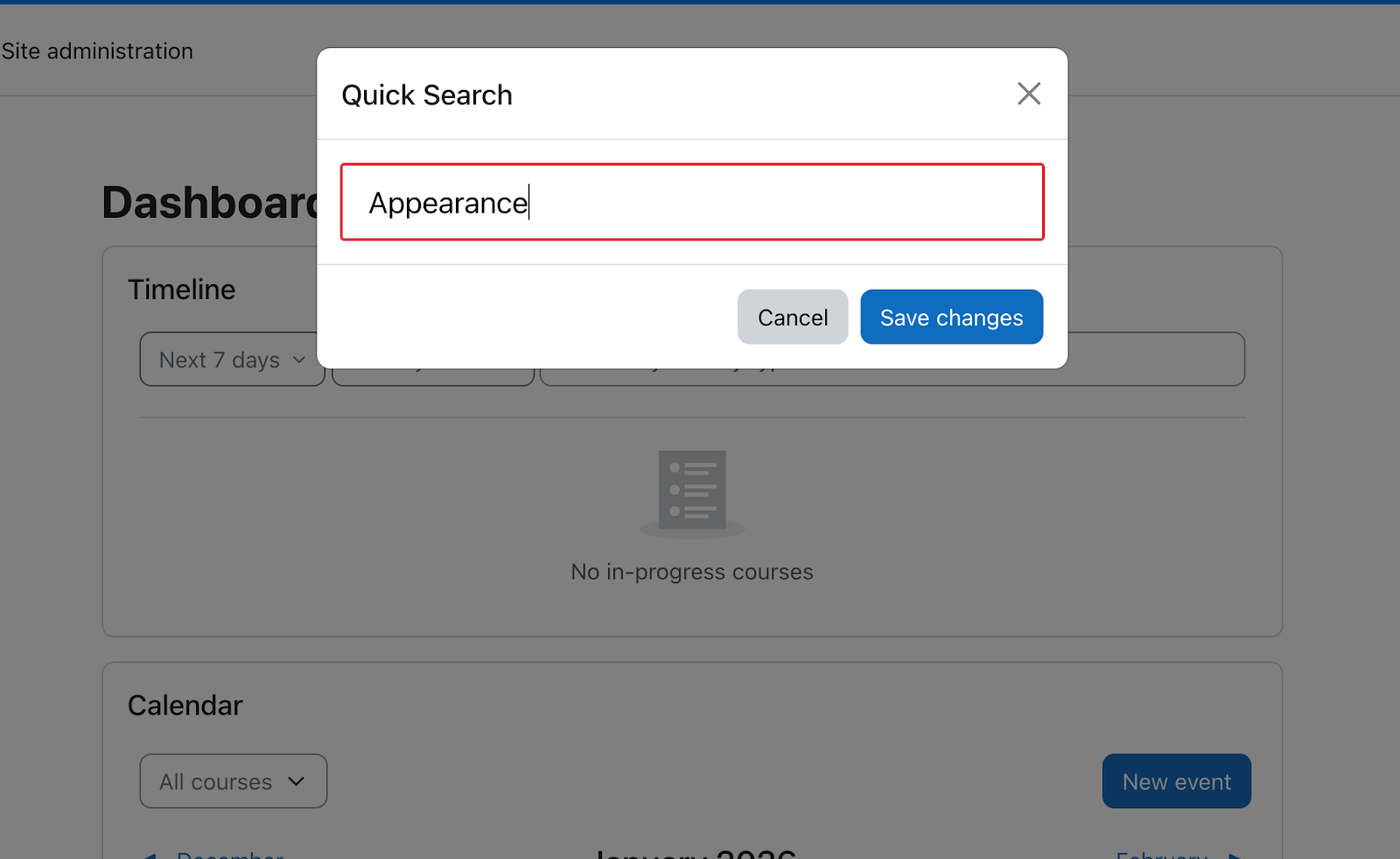
Swarthmore has developed a new plugin that adds an admin menu search to every page. It can be invoked by pressing Ctrl + Shift + P.

Search box with submit button

Summer 2025 Hack/Doc Fest at Swarthmore

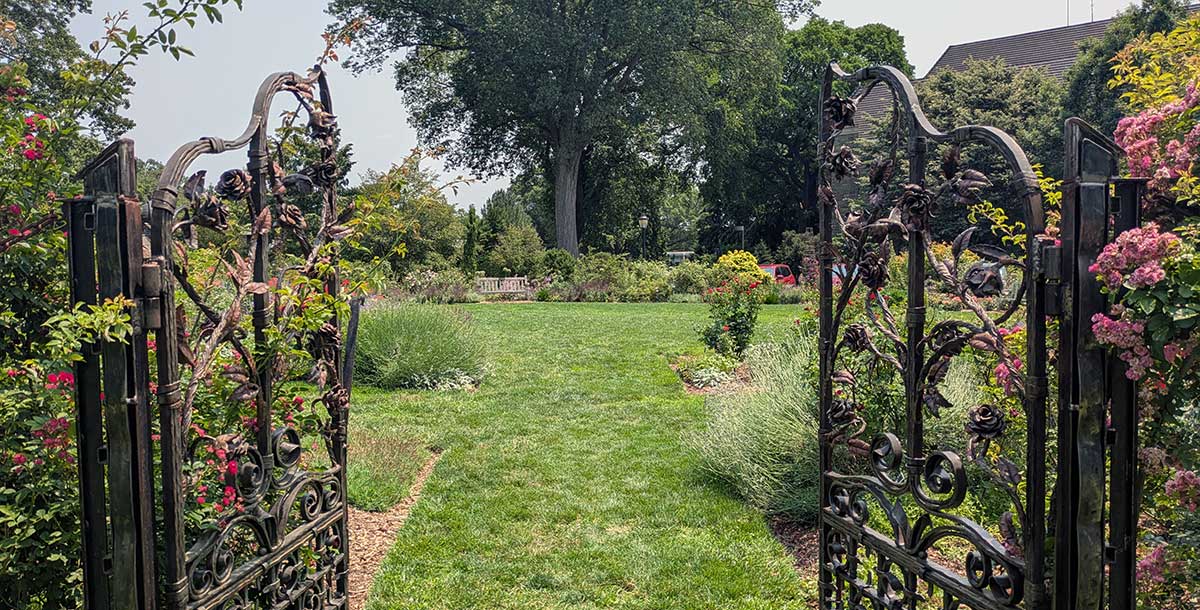
Metal gates leading to a well-tended garden
The Dean Bond Rose Garden at Swarthmore College

This was CLAMP’s third visit to Swarthmore College, but the first time we’d gone there during the summer (see the 2020 and 2023 reports). After some rain on Tuesday morning, good weather moved in for the rest of the conference. Points of interest on campus included the Scott Amphitheater, the Dean Bond Rose Garden (pictured above), and “Crumhenge“, a Stonehenge-inspired art installation along the Crum Creek trail.

Indoors, we evaluated Moodle 5.0. The consensus among the attendees is that schools planned to upgrade to Moodle 4.5 for the forthcoming school year and give the Moodle 5.0 series (see below) time to develop. Please read on for a discussion of issues at this summer’s Hack/Doc Fest.

Issues specific to Moodle 5.0

Question Bank

We have a separate blog post detailing the various changes to the Question Bank in Moodle 5.0. These are over and above the fixes for the Question Bank import issue that CLAMP flagged in February. The short version is that courses may now have multiple question banks, questions created in quizzes may not be shared, and category-level question banks have been eliminated. Please see the linked post for further details and recommendations.

Version numbering

Moodle has a new version naming convention starting with the Moodle 5.0 release. In terms of the operational calendar, we can expect a new long-term support (LTS) release in the October of even-numbered years, and new major features in the April of odd-numbered years. Read on for a fuller explanation.

Previously, the first two numbers indicated the major version of Moodle, while the third number indicated the minor version. So, Moodle 4.5.0 would be the first release of Moodle 4.5, while Moodle 4.5.3 would be the fourth release of Moodle 4.5.

Going forward, the first number will indicate a series, the second number a version within that series, and the third number the patch version. Therefore, Moodle 5.0.0, released in April 2025, is the first release in Series 5. Moodle 5.0.1, the first patch release, was released in June. In October, Moodle HQ will release Moodle 5.1.0, the second minor release in Series 5. The fourth release in a series, in this case Moodle 5.3.0, will be a LTS release, and will be followed by Moodle 6.0.0, the first Series 6 release.

Plugin removals

The following plugins are no longer included in Moodle, beginning with Moodle 5.0:

As of writing, these plugins are published on various GitHub repositories but not available through the Moodle plugins database. They have not been explicitly tested on Moodle 5.0. If you intend to keep using one of them in Moodle 5.0, it’s important to ensure that you’ve downloaded the code before executing the upgrade, otherwise data from the plugins may be removed as part of the upgrade process.

Activities overview

The Activities overview has been redesigned for Moodle 5.0. This appears to be a partial reimplementation: supported modules include Assignment, Workshop, Feedback, Resources, but not Quiz, which still has the pre-5.0 page. The page is available to teachers and students. The information given for Assignments includes Assignment name, location of assignment within the course (section name), due date, number of submissions received, and quick actions/grading. There is no sort functionality although it’s been proposed. Entries are sorted in the order that they’re on the course page except all subsections fall after all sections. Moodle HQ has additional development planned for future releases.

Table listing an assignment with its due date, number of submissions, and a grading action.
Activities overview showing a teacher’s view of an assignment

TinyMCE drag-and-drop

Media can now be dragged-and-dropped into the TinyMCE editor. Depending on the size of the original image, you may need to resize the dimensions so that the image fits the size you’re looking to obtain. You can resize the image by clicking on the picture icon in the TinyMCE toolbar. The measurement is in pixels. You are not prompted to add alternative text but you can go back and add it later. It appears in some cases to pull alternative text from the image metadata but this behavior wasn’t consistent.

AI subsystem

The AI subsystem was introduced in Moodle 4.5, and we reviewed it at the Winter 2025 Hack/Doc Fest at Lafayette. A new feature is an “explain” button in addition to “summarize” on pages. The prompts that are sent along with text are different between explain and summary. Those are configured inside the Action Settings of a provider instance.

Both summarize and explain contain the instructions by default:

“Important Instructions:

    1. Return the summary in plain text only.
    2. Do not include any markdown formatting, greetings, or platitudes.
    3. Focus on clarity, conciseness, and accessibility.”

Explain has instructions along the lines of Elaborate, Simplify, Provide Context and Organize logically. Summarize is more concise; it includes “Condense and Simplify”.

You can also configure multiple providers, setting up the future possibility of using different providers for different tasks. Configurable options include rate limits and the model to use (gpt-4o is the current default). You can also use an OpenAI compatible API such as a locally-hosted Ollama instance.

SMS notifications

Moodle now supports SMS notifications as part of the Messaging system. This is a pluggable interface; core ships support for AWS SNS and Modica, while Twilio is available as a plugin. CLAMP doesn’t possess a suitable phone number so we only evaluated the configuration side. In General > Messaging > Notification settings, you can enable SMS. You can then scroll down to unlock SMS for assignment notifications only; that’s all that’s supported in this release. If you leave them off by default, users can choose to enable them.

We did find an interesting bug. If you have enabled SMS in Messaging but disabled all available gateways, various parts of the Moodle Messaging system don’t work properly.

Other issues

TinyMCE keyboard conflicts

When using TinyMCE as the editor and also typing in Hebrew on a Mac, a specific keystroke triggers the TinyMCE Help menu and does NOT type the intended character. The specific keystroke is alt-0 and in Hebrew it should appear as a small diacritic below the typed character. An aleph character without the diacritic looks like this: ש but with the diacritic, it looks like this: שְ. This is actually a bug in the upstream TinyMCE project and not specific to Moodle, but we’ve reported it in both places.

Forum attachment accessibility

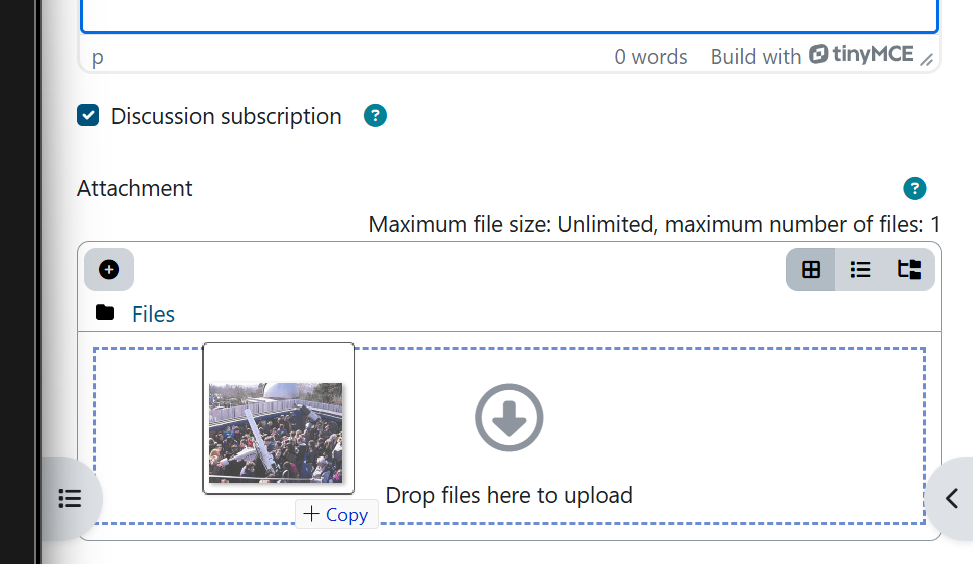
Moodle allows you to upload images to the forum activity as attachments, instead of inserting them inline in the TinyMCE editor. When images are added in this way, they are displayed at the bottom of the post. However, there is no option for adding alternative text to images added in this way. We’ve reported this to the tracker, and we recommend for now that users not upload images (as opposed to other types of documents) to the forum as attachments.

Upload interface for forum attachments; there is no option to describe the image
Uploading a file as an attachment to a forum post

Disable Safe Exam Browser

There was interest in hiding the safe exam browser functionality from teachers. This can be accomplished by modifying the teacher role and setting the following capabilities to Prevent:

  • quizaccess/seb:bypassseb: Bypass the requirement to view quiz in Safe Exam Browser
  • quizaccess/seb:manage_seb:allowedbrowserexamkeys: Change SEB quiz setting: Allowed browser exam keys
  • quizaccess/seb:manage_seb:allowreloadinexam: Change SEB quiz setting: Allow reload
  • quizaccess/seb:manage_seb:requiresafeexambrowser: Change SEB quiz setting: Require Safe Exam Browser

Overrides don’t appear properly at times

At times users don’t see the correct overridden dates on the timeline and/or calendar (in various places). This appears to be the case primarily if a user is a student in one course and a teacher in another. See links below for related tracker issues.

All tracker items

Please see below for a list of all tracker items that we collected during the Hack/Doc Fest. Please be aware that Moodle migrated to JIRA cloud hosting the weekend after the conference and some users have reported challenges logging in since then.

The Question Bank in Moodle 5.0

In February 2025, CLAMP posted about serious question bank issues in Moodle versions 4.3.8, 4.4.4, and 4.5.0. While those issues were addressed, With the release of Moodle 5.0, the Question Bank has been radically revised and appears to be a work in progress.

Up through Moodle 4.5, the course Question Bank stored all quiz questions within a course. Teachers could either create or edit questions directly in the Question Bank or from within any quiz in that course. All questions created from within a quiz would also be available from the course Question Bank.

Starting with Moodle 5.0, a course can have multiple Question Banks. However, questions created within a quiz in this environment will not store questions in the course-level Question Bank; instead those questions are restricted to the context of that specific quiz.

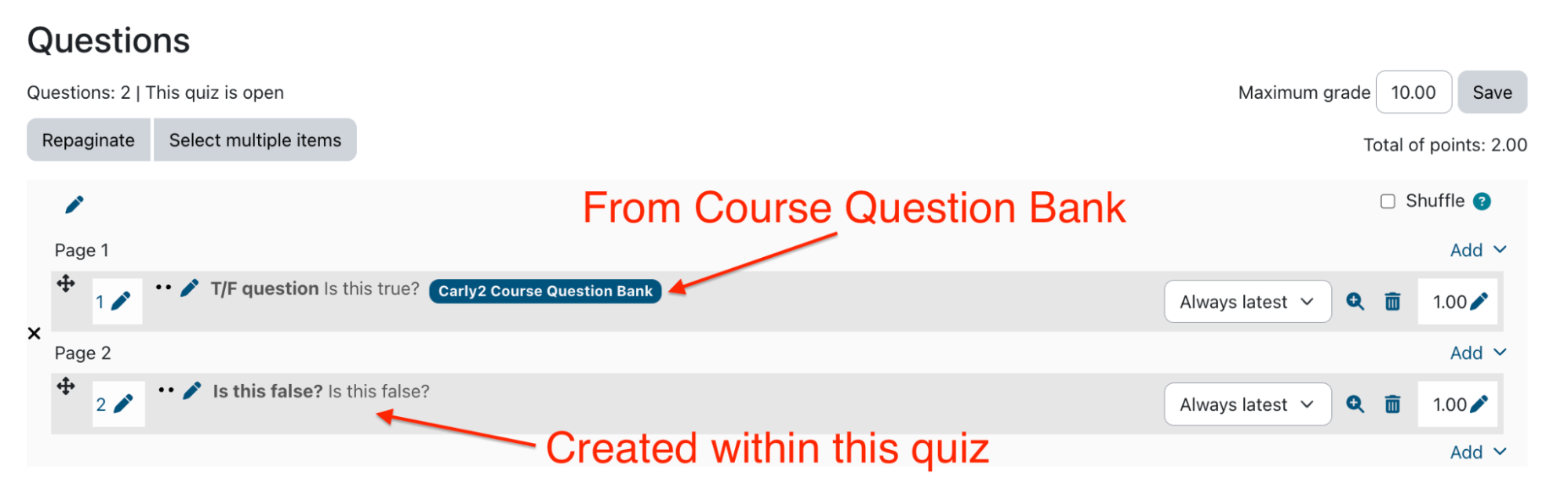
It is still possible to add a question from the course-level Question Bank(s), and when you do, the question will display with a clear tag indicating the name of the Question Bank from which it is sourced.

List of questions in a quiz. The question from a course question bank is tagged as such.
Two quiz questions; one is tagged “Carly2 Course Question Bank” and is from a course-level question bank.

Further, a teacher can access any Question Banks to which they have been allowed access from any quiz or course. Access to Question Banks is granted to all teachers on a course.

How to add a Question from a Shared Question Bank

This is how you add a question from a Question Bank in another course in Moodle 5.0:

  1. From the Questions page in a quiz, click “Add“.
  2. Choose “from question bank”.
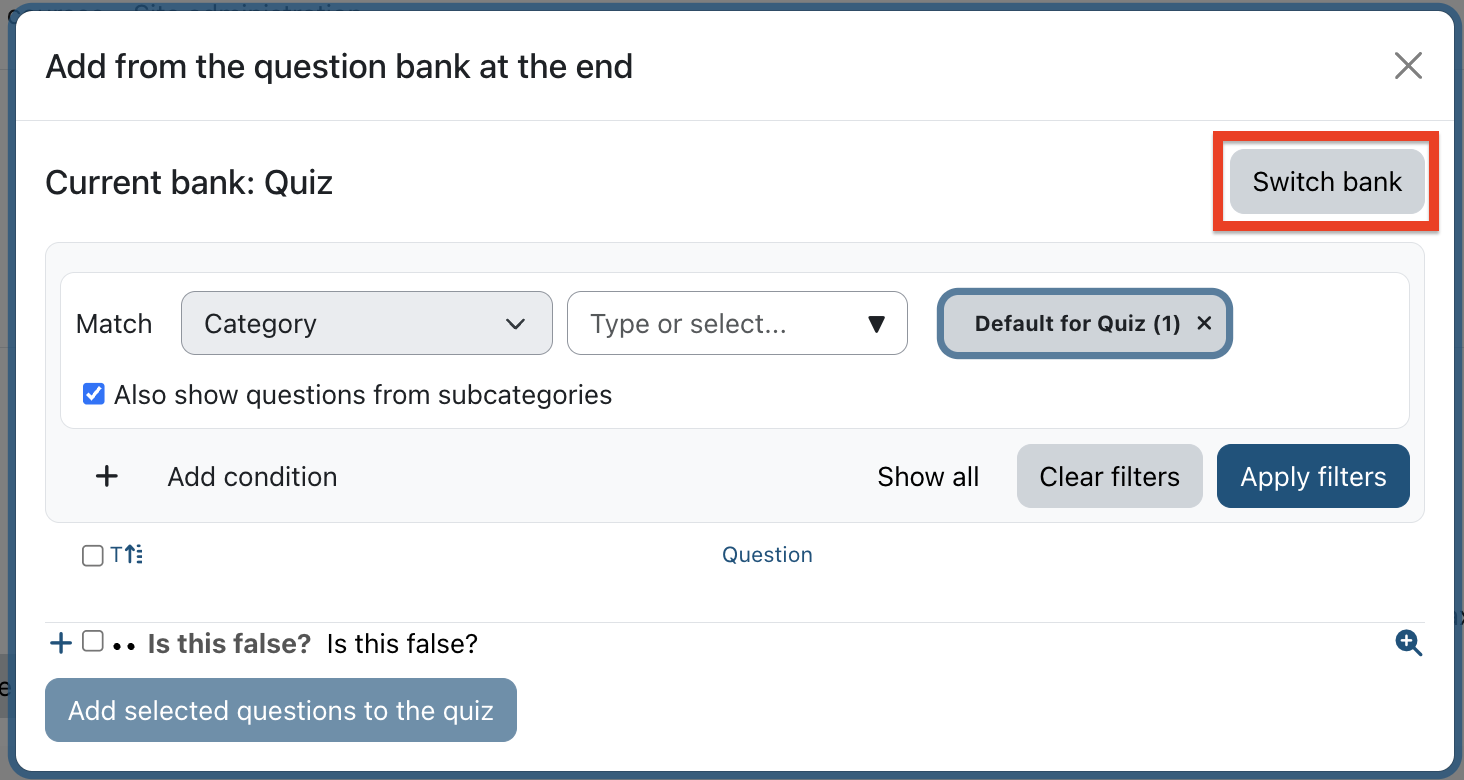
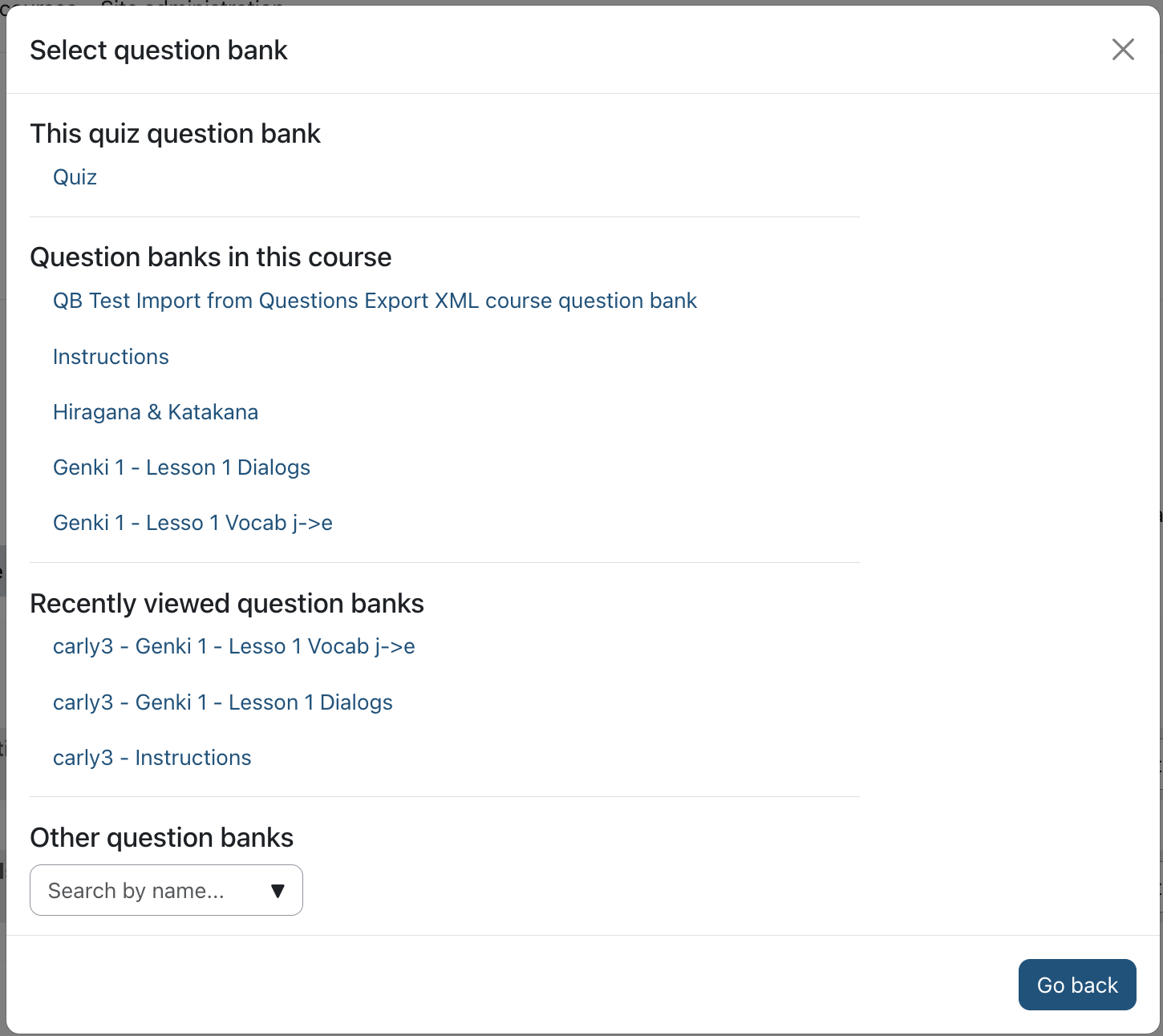
  3. In the pop-up window, click the “Switch bank” button.
Interface for question bank management. Filters are available for categories. The user may switch to a different bank.
Popup for switching to a different question bank.
  1. Choose the Question Bank you want to use.
Textual list of question banks available to a user. Question banks in a course are grouped together.
Screen showing question banks in the course and other recent question banks.

Roles in Question Banks

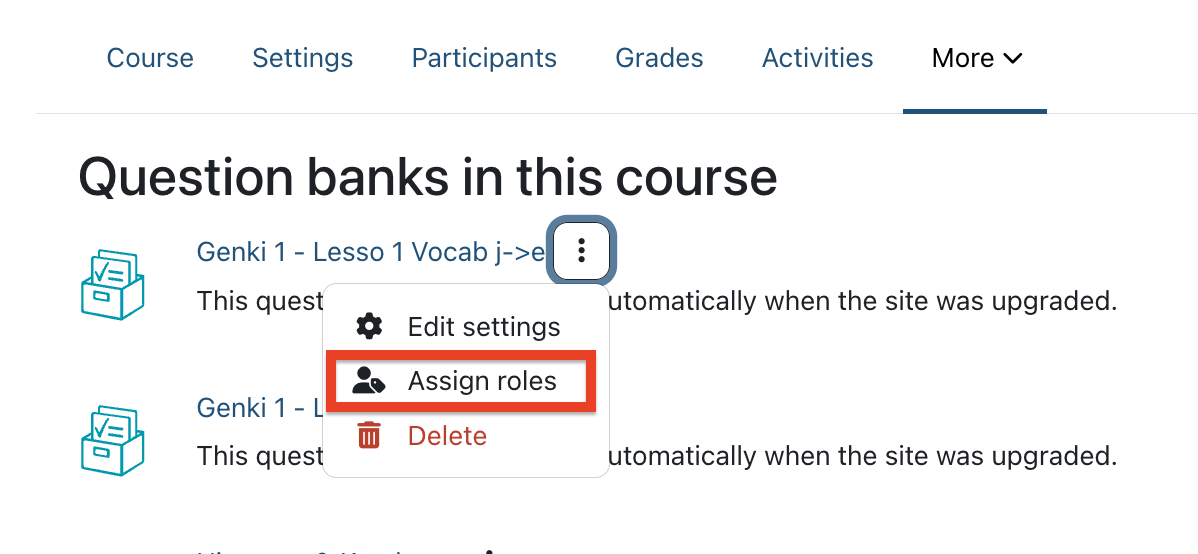
In Moodle 5.0, it is now possible to control access to your question banks separately through the Assign Roles feature.

Context menu for a question bank. Options include Edit settings, Assign roles, and Delete.
The menu for a question bank now includes role assignment.

There are three roles available to assign within a question bank: teacher, non-editing teacher, and student. Students in a question bank have no permissions within the bank, so assigning that role has no functional difference as having no role in a bank.

Users who are assigned a teacher or non-editing teacher role in a question bank are able to access the question bank within their separate courses when adding questions. However, the user must be enrolled in the course the question bank is native to in order to be assigned a question bank role. Users’ roles within the course and roles in the course question bank may be different and are assigned separately (i.e. a student in a course may be assigned as a teacher in the question bank for the same course).

Question bank changes when upgrading in place from Moodle 4 to Moodle 5

Within our Moodle 4.5 test environment, we added questions to question banks at the course level, the category level, and the site level to document their new place within Moodle 5.0. Upon upgrading, this is what happened to the questions and question banks within each level.

Course-wide question banks

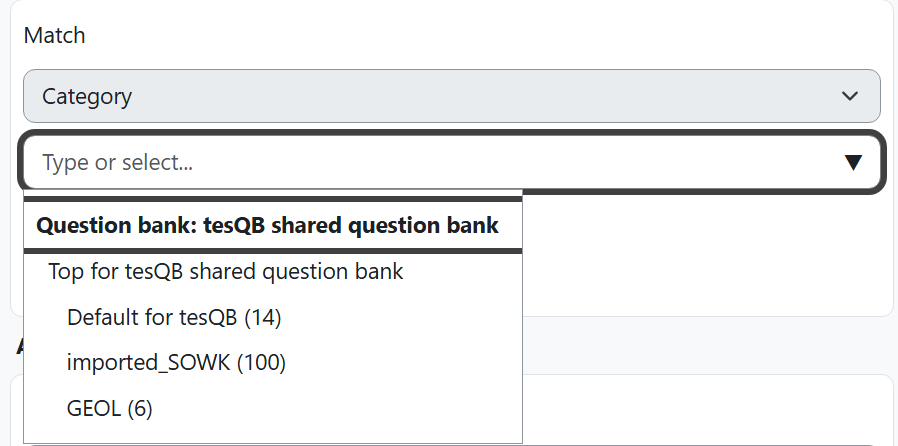
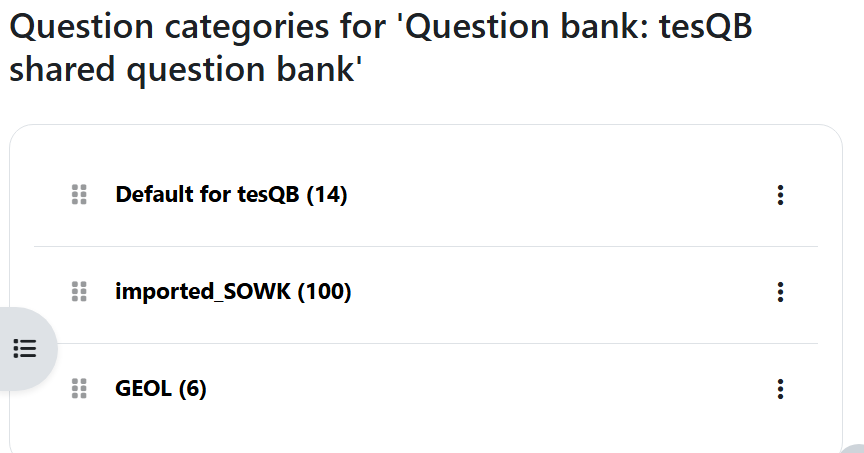
The course-wide question bank questions are all added into a new question bank named “[course short name] shared question bank” with the description “This question bank was created automatically when the site was upgraded.” The name and description can be changed and the question bank can be renamed in the Edit settings page. Categories within the course question bank from before the upgrade are preserved (see below).

Drop-down selector with list of question categories in a question bank
Categories in an upgraded question bank

Category-wide question banks

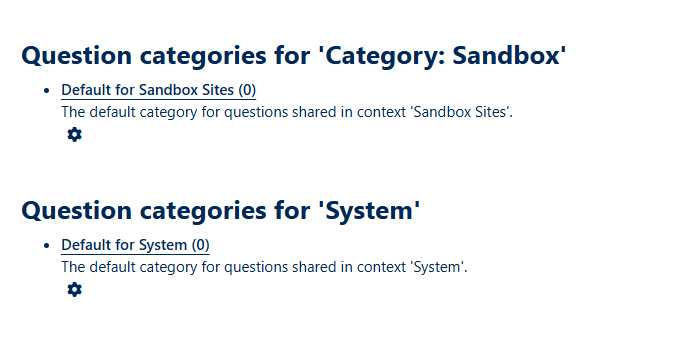
One of the major changes to the question bank structure is the handling of category-wide question banks. Moodle no longer allows users to see the site-wide or category-wide question banks. When navigating to the edit categories section within the course, users are only able to see question categories for the course question bank.

Interface showing separate question categories for the system and category in Moodle 4.5
System and category question banks in Moodle 4.5
List of course question banks at the category level in Moodle 5.0.
In the category context, only course question banks are available in Moodle 5.0

If category-wide question banks exist, this prompts the creation of a course entitled Shared teaching resources for category: [Category name]. This course is created with no participants and no content besides the question bank. Users must be enrolled to access the question banks on the category level.

👉 It is important to note that even the authors of questions within category-wide question banks will not have access to these unless specifically enrolled in the newly- created teaching resources course. Once a user has been enrolled in this course, they can access these questions when populating quizzes with questions using the Switch bank function. The category question banks can only be updated within the newly-created course.

Site-wide question banks

Site-wide Question Banks function in a similar way as before—they are available on the site’s homepage under the Question banks tab (for admins, not all users on the course). This question bank is not available unless users have been assigned a teacher or editing teacher role in the question bank. All users are available in the role assignment page.

Recommendations

CLAMP has three specific recommendations for schools proceeding with Moodle 5.0, and we’ll explain each of them below:

  1. Enumerate system- and category-wide question banks and who they are shared with
  2. Encourage people to create questions in the question bank and not the quiz
  3. Do not import questions with categories into a Moodle 5.0 system

Before upgrading to Moodle 5+, CLAMP recommends you ensure you know about any system-wide or category-wide question banks/categories and with whom they were shared. While these will upgrade well, how they are shared will change. After upgrade, you will want to re-share those question banks/courses through assigning question bank roles and/or enrolling users in the appropriate courses.

Questions created within a quiz environment will not be added to the course question bank and will not be shareable or available outside of the quiz. Therefore, CLAMP recommends creating questions intended for reuse within the course question bank, rather than within the quiz.

CLAMP strongly recommends not relying on exporting questions with categories from the questions area of another site, and then importing that into your Moodle 5+ environment. If your questions export includes categories, Moodle 5+ will import each category as a separate Question Bank in your Moodle course, even if the category contains no questions.

Any questions export will import the questions into a new question bank, that will be named “System Shared Question Bank”, with the description of “This question bank was created automatically when the site was created.”

Hack/Doc at Carleton: Day 1

A harbinger of things to come

On their first morning in Northfield, Minnesota, the out-of-town attendees passed an uncomfortable silence. Each was separately aware of a singular phenomenon that had resisted all explanations. Finally, having traveled from the Fairfield Inn to Carleton’s campus, someone had the courage to ask if the others, too, smelled french toast with maple syrup.

Thus began CLAMP’s first in-person Hack/Doc Fest since Winter 2020 at Swarthmore College. The mundane explanation of this sensory experience was the presence within the town of a Malt-o-Meal factory. It is apparently quite normal for Northfield’s air to reflect whatever’s being made that day, though chocolate is more common than french toast. An extreme, if benign, example of a small town taking on the characteristics of the local employer.

Pronouns

Cereal questions resolved, CLAMP spent much of the first day at Hack/Doc tackling the display of pronouns in Moodle (see the Summer 2021 write-up for discussion of pronouns in Moodle 3.11). First, CLAMP submitted fixes for the Moodle 3.11 and Moodle 4.0 versions of the Attendance module so that pronouns would display correctly. This was an issue discussed on the CME and first reported to the maintainers by CLAMP members. Second, CLAMP tested viewing a student’s pronouns in the Participants list and discovered that this worked for teachers but not students and that giving students the necessary capability could inadvertently expose restricted user profile fields. CLAMP reported this to the Moodle tracker (MDL-75086).

Timed assignments

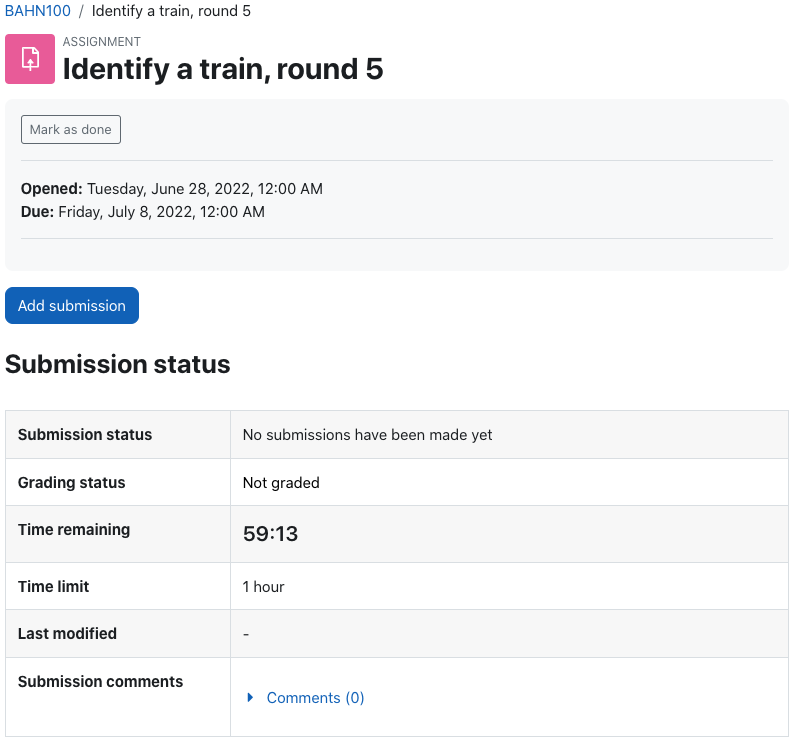
A new feature in Moodle 4.0 is timed assignments. This feature is still somewhat experimental and must be enabled first. Once enabled, you may choose to give an assignment a time limit. A student is prompted to begin the assignment, at which point a visible timer starts running. The time may be measured in seconds, minutes, hours, days, or even weeks, and the clock continues running if the student navigates away. If the remaining time until the due date is less than the maximum time permitted, then the shorter time is used.

In the course of testing, CLAMP uncovered an interesting and important bug (MDL-75087). If the assignment takes file submissions, a student may click on “Add submission” directly from the dashboard and bypass the timer. The next time they visit the assignment the timer will start running, but for short-timed assignments, this is a significant flaw.

We also encountered a somewhat confusing situation: if a cut-off date exists and a student tries to submit when time has expired, they receive a “no permission” error message. It’s possible to see this in untimed assignments as well, so it’s not new, but the message could be improved. We didn’t get a chance to follow up on this issue.

Question bank improvements

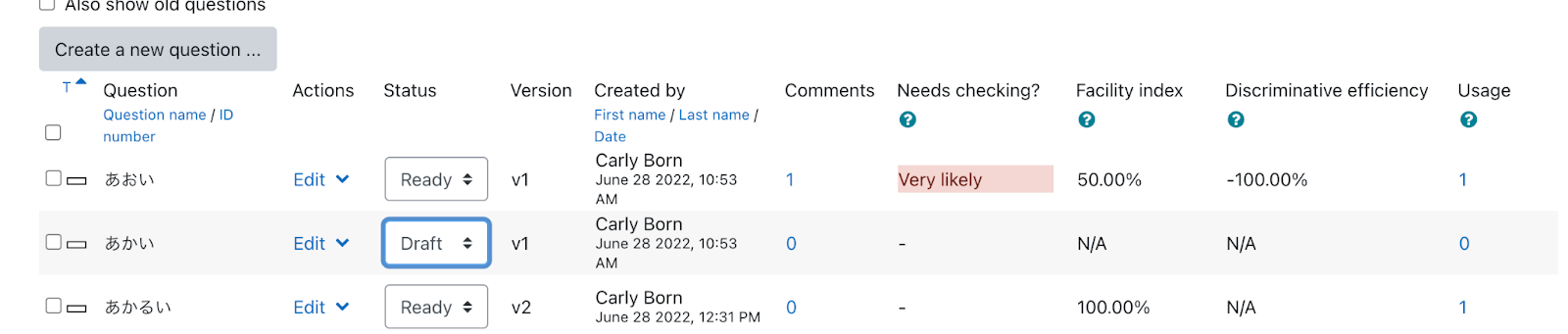
Moodle 4.0 made several changes to the question bank. The question bank list view now exposes the following fields: Status, Version, Comments, Facility Index, Discriminatory Efficacy, Usage. Most of this information already exited but it’s easier to access. You may customize these columns and their sort order in the Site Administration.

Questions may now be versioned. You can’t set up A/B questions but you can choose which version the quiz uses. If you change the version mid-stream the change does not affect existing attempts unless you regrade. This versioning means that you also have access to question history.

LearnR theme

We took a look at the LearnR theme, which is the Moodle 4.0 replacement for Fordson, which a number of CLAMP schools use. LearnR is a Boost derivative with a number of features:

  • Allows the admin to set “unneeded blocks,” these will not be available in the Add a Block menu when this theme is active.
  • You can create custom “buttons” on the dashboard that link to your specified location
  • Marketing tiles could be used for links to other campus resources, allows for pictures.
  • Alert messages can be posted to Dashboard, along with general welcome information.
  • Can put activity navigation (prev & next) in several locations (upper right, footer, etc)
  • Can customize the course display on Dashboard, choosing from a variety of tile and horizontal layouts

We did find and report one bug: text for Authenticated User appears even when not authenticated: https://github.com/dbnschools/moodle-theme_learnr/issues/11.


Summer 2022 Hack/Doc Fest: Event page | Day 1 | Day 2 | Day 3