Category: News

Winter 2026 Hack/Doc Fest at Connecticut

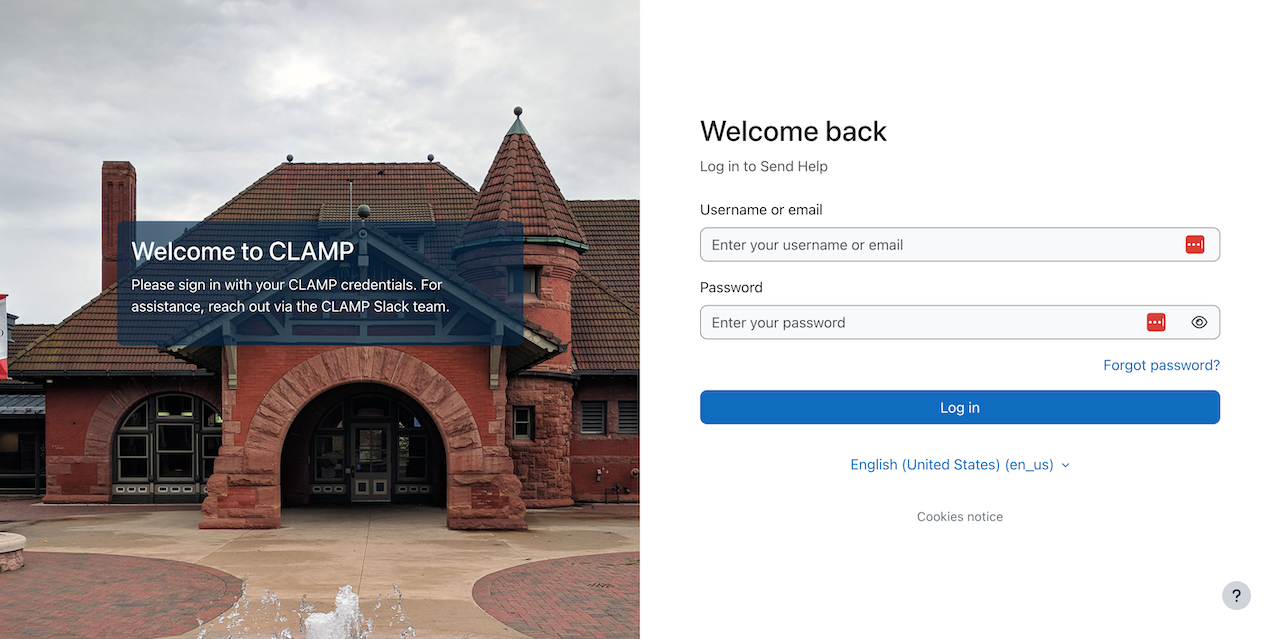
CLAMP held its Winter 2026 Hack/Doc Fest at Connecticut College in New London, Connecticut. This was CLAMP’s second visit to Conn College, after the Winter 2024 Hack/Doc Fest. The primary focus this time around was the new Moodle 5.1 release, plus follow-up on the issues with the question bank in Moodle 5.0. In addition to this overview, please see our separate posts on data privacy and the safe exam browser.

Issues specific to Moodle 5.1

Question bank

The changes to the question bank in Moodle 5.0 required their own separate blog post to hash out. On the whole, folks felt better about the question bank in Moodle 5.1. That said, there are still some issues to be aware of.

Sharing question banks from the course level

We evaluated how to share question banks (QB) between courses now that there are no category-level question banks. In this example, we have Course 1 and Course 2 taught by Teacher 1 and Teacher 2. Teacher 1 can create a course-level QB in Course 1. Then they join Course 2 as a Teacher and import a quiz from Course 1. This quiz has 3 questions from the Course 1 course-level QB. Teacher 2 cannot edit those questions. Course 2 also does not have full access to the course-level QB in course 1.

If Teacher 1 edits a question in this quiz from their one in Course 1, it is also changed in the instance in Course 2. In the case that the quiz has been attempted, the Teacher 1 can change the the question. The student who had attempted the quiz still sees the original question, but future students will get the new version of the question unless the faculty explicitly chooses the question version in the Quiz settings.

If Teacher 2 duplicates the quiz, then they get a copy of the quiz but the questions are copied into a new “System shared question bank” in Course 2. Teacher 2 can edit that copy of those questions. But it is strange that they are dumped into a “System shared question bank” rather than in a quiz-specific question bank.

Restoring quizzes from Moodle 4.5 to Moodle 5.1

There are still some challenges with importing quizzes from Moodle 4.5 to Moodle 5.1. We tested with quizzes from a school’s production 4.5 instance. The first issue is that we saw a number of non-fatal errors that nevertheless had the red background that usually indicates a more serious issue:

Moodle displaying a series of non-fatal errors when importing questions
Category-level questions will be stored course-level question banks

These are all questions that were heretofore stored at the category level. Some of these questions contained Random questions from specific categories. The questions appear to load, but clicking on the “See questions” link on the Random Questions causes a fatal error:

Moodle question bank with list of questions

Moodle fatal error about invalid course module ID

As of yet, we cannot view the list of questions in the categories for these quizzes. The course-level question bank shows the list of quizzes, but clicking on them takes you to the quiz itself, and does not show you the list of questions in the category from which these Random questions are pulled.

Regular multiple-choice questions are labeled with “System shared question bank.” However, if I go to the course-level question banks, even though I see a System shared question bank (created from previous testing), the imported multiple-choice questions are not there. Site home does not have any question banks.

Conclusion: the questions are clearly there. But they are “hidden” in some kind of secret question bank. Use extreme caution when importing quizzes from previous versions into Moodle 5.1.

Activity overview

Activity overview is another feature that saw changes in Moodle 5.0 and was further improved in 5.1. It’s been extended to include dates and completion information for BigBlueButton, Choice, Database, Forum, Glossary, H5P, Lesson, SCORM and Quiz in addition to Assignment, Feedback, Resources, and Workshop.

Admin search improvements

Moodle carried out research into the information architecture (IA) of the site administration interface. Among other outcomes, this research identified a need to improve search within the administrative interface. The first improvement to land is MDL-85518, returning search results in a more intuitive order.

Server configuration

For self-hosted schools, Moodle has made a major change in its code layout for the 5.1 version. This is done to permit the introduction of the “router” feature and prettier URLs. Most of the public code that was previously in the root of the code base is now in a public subdirectory. Your config.php still lives in the root. Also still in the root is admin/cli/ with various tools, including cron.php. You’ll need to make various one-time adjustments to your deployment to accommodate these changes. Included below is the Apache configuration for CLAMP’s Moodle 5.1 test environment:

<VirtualHost *:443>
    ServerAdmin admin@clamp-it.org
    ServerName ferry.clamp-it.org
    DocumentRoot /var/www/ferry/site/public

    ErrorLog ${APACHE_LOG_DIR}/ferry-error.log
    CustomLog ${APACHE_LOG_DIR}/ferry-access.log combined

    <Directory "/var/www/ferry/site/public">
        AllowOverride None
        Require all granted
        DirectoryIndex index.php
        FallbackResource /r.php
        <FilesMatch \.php$>
            SetHandler "proxy:unix:/run/php/php8.3-fpm-ferry.sock|fcgi://ferry/"
        </FilesMatch>
    </Directory>

    <Proxy "fcgi://ferry/">
    </Proxy>

    SSLCertificateFile /etc/letsencrypt/live/ferry.clamp-it.org/fullchain.pem
    SSLCertificateKeyFile /etc/letsencrypt/live/ferry.clamp-it.org/privkey.pem
    Include /etc/letsencrypt/options-ssl-apache.conf
</VirtualHost>

Section limit deprecation

Moodle has deprecated the maxsections configuration setting; going forward there will be no limit to the number of sections a teacher can add to a course. Out of curiosity, we used Moodle WebService Manage Sections plugin to bulk add 500 sections to a course (ironically, that plugin hasn’t be updated to reflect the change to maxsections). The course and navigation were functional afterwards.

Manual enrollment notifications

Manual enrollment notifications are sent immediately regardless of whether the enrollment is active. This has to do with how enrollment status is tracked in the database. There are only two states: enrolled or suspended. The start and end times are tracked separately. Moodle calculates whether an enrollment is active based on the time constraints, but it doesn’t go back to the database. It would be onerous for cron to check every minute whether an enrollment has become active.

That does leave the question of the message to the user. The default message for a new manual enrollment, as defined in the language string enrol/customwelcomemessageplaceholder, is this:

Hi {$a->firstname}, you are enrolled in the course {$a->coursename}.

Moodle allows teachers to override this on a per-course, per-enrollment method basis. It’s buried in the course navigation, in Course > Participants > Enrolment methods > Self enrolment (or Manual enrolment), if you edit the method. Moodle provides numerous placeholders for programmatic customization:

Moodle string customization interface with different placeholders

One thing that’s missing here is the enrollment start date, as opposed to the course start date. Moodle 5.1 added the ability to set an arbitrary state date for a manual enrollment. We’ve proposed a change (MDL-87665) to make that value available to the message customization.

Activity chooser

The activity chooser has a new look and feel. You can still “star” activities, which are now grouped functionally: Assessment, Collaboration, Communication, Resource, and Interactive content. These categories are fixed and can’t be modified. New activities are added to “All.”

Other issues

Phantom grading changes in the gradebook

There is a bug in Moodle that can lead to unexpected changes in the gradebook. When using Google Chrome, with grader editing turned on, if a user uses two-finger scroll or mouse wheel scroll they can change grades unintentionally if the cursor was hovering over a grade cell. On CLAMP’s development environment we could only reproduce this if the user’s browser had the Lastpass extension enabled. Macalester can reproduce the issue in production without the extension.

Core is tracking the issue in MDL-86837. A workaround is to add the following Javascript snippet to Site administration > Appearance > Additional HTML section > Before BODY is closed:

<script>
document.addEventListener("wheel", function(event) {
if (document.activeElement.type === "number") {
document.activeElement.blur();
}
});
</script>

Ongoing issues with group overrides on assignments

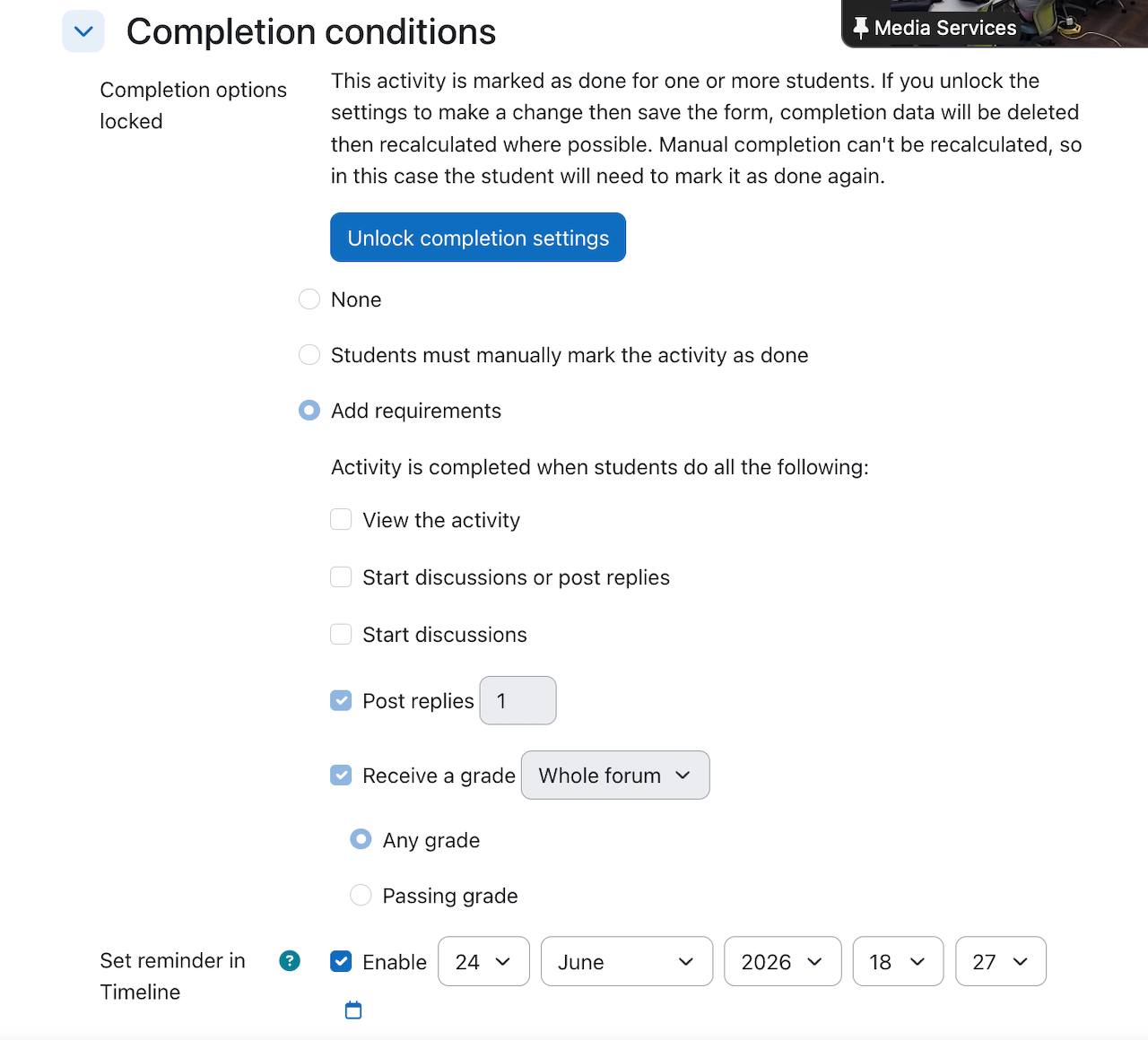
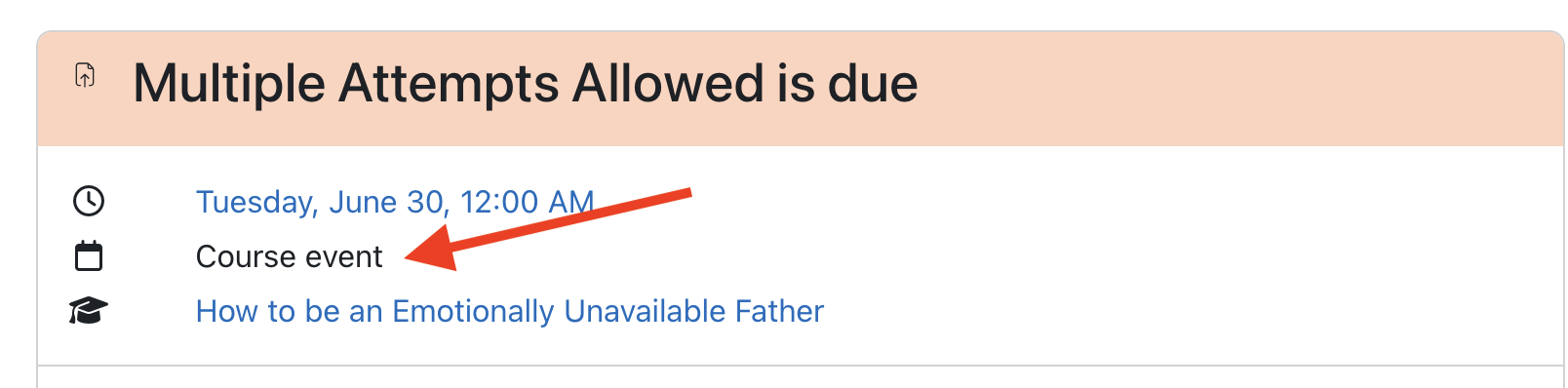
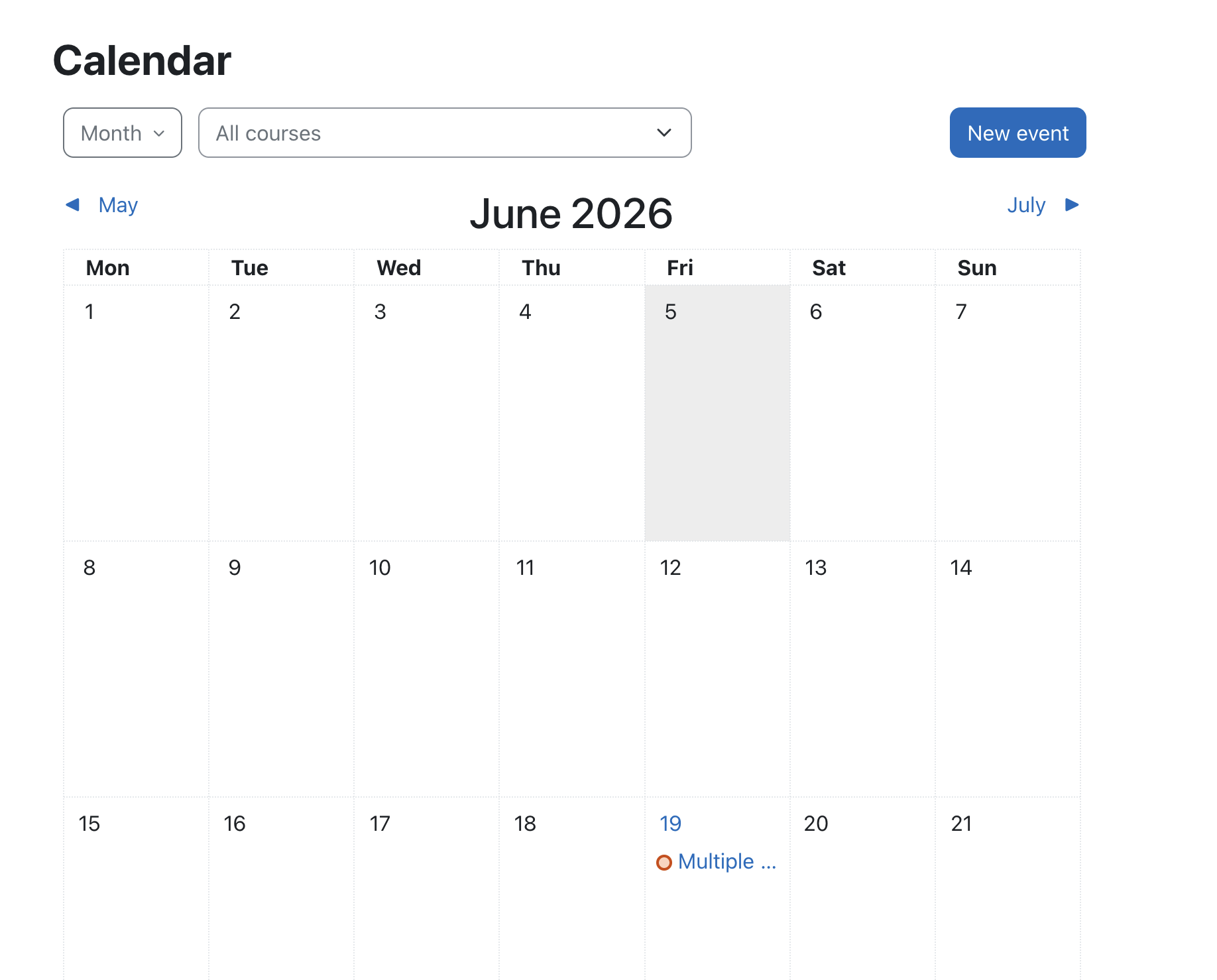
We documented some issues with group overrides in assignments at the Summer 2025 Hack/Doc Fest (“Overrides don’t appear properly at times“). There’s another issue, MDL-81004, related to how overrides appear on the timeline in the dashboard.

Here’s an example of the issue in question. Create an assignment with a default due date of midnight, 7 days from today. Create a Group Override and change the due date to be one month later. (Don’t do this testing in February because the shorter month might make it weird). This means the overridden due date is more than 30 days into the future.

Now, log in as a student in the date override group and navigate to the dashboard (in default config) so that the Timeline and Calendar are visible. Given that the calendar is showing the current month and the timeline is set to next 7 days; on the Timeline and calendar the original due date is shown, not the overridden date.

As the student, change the timeline to next 30 days, and the wrong due date (not applying the override) will still appear on the timeline. Still as the student, change the calendar to next month and timeline to next 60 days. Calendar and timeline will now show the override.

Quiz pre-creation

Moodle added a feature in 5.0 to “pre-create” quiz attempts prior to the quiz becoming available. This can potentially reduce performance issues with large quizzes. This must be enabled in Site administration > Plugins > Quiz > General settings. A range of 1-24 hours may be selected for when attempts are pre-created. These settings are sitewide and cannot be changed by teachers. Once the attempts are created the student receives a notification and the quiz cannot be modified.

Data privacy

Please see Using the Moodle data privacy feature for data export for a discussion of using the data privacy features for student data export.

Safe exam browser

Please see Safe Exam Browser integration within Moodle for a discussion of the current state of the Safe Exam Browser integration in Moodle.

Sanitizing courses of student data

We tested the possibility of retaining a course for historical reasons but removing the student data after a period of time because of FERPA concerns over data retention. Moodle has a course reset function available in the interface. The moosh cli package includes a course-reset command which permits automating this functionality. The course-reset command may be combined with the course-list command to output all courses from a category and then reset them:

moosh course-list -c 3 -i | xargs -n1 moosh course-reset

Note that course-list will traverse the subcategories of a category and retrieve all courses. Resetting a course purges course data but retains enrollments.

Error when adding media to the front page

Dragging and dropping an image to the course home page triggers an error and fails. This worked in Moodle 5.0. We reported this as MDL-87661; core has already identified the root cause and proposed a fix.

New plugins from CLAMP schools

LTI Tools API

Reed has developed a new plugin that provides a suite of web services for working with LTI tools on a Moodle installation.

Quick Search Plugin

Swarthmore has developed a new plugin that adds an admin menu search to every page. It can be invoked by pressing Ctrl + Shift + P.

Search box with submit button

Using the Moodle data privacy feature for data export

Moodle implemented a data privacy feature in response to Europe’s General Data Protection Regulation. CLAMP blogged about the GDPR and Moodle in 2018. The impact of the GDPR on the LMS at CLAMP schools has been limited. We do occasionally have students request exports of their data, and at the Connecticut Hack/Doc Fest we evaluated whether this feature would be helpful.

Data Privacy Officer

There is a “Privacy Officer” role in Moodle. “A Privacy officer can respond to data requests and manage the data registry.” A Moodle admin can do this too.

If enabled, Moodle users can send the Privacy Officer a request to download or delete all their Moodle data. The Privacy Officer receives an email notification and can approve or deny the request. If approved, a Moodle process starts to either generate a zip file containing all the user’s Moodle data or delete all the user’s data.

There are a variety of options to control the process, such as:

  • Allowing users to request data download or deletion
  • Automatic approvals of download or deletion of user data (self-service)
  • Only allowing the Privacy Officer (or admins) to download the user data

Enabling “Contact the privacy officer” shows these options in a user’s profile page.

Moodle administrative screen for a user to choose different privacy options

The data privacy settings are at: Site administration > Users > Privacy and policies > Privacy settings.

The exported user data file is a zip file containing an index.html file for handy navigation of the data.

  • User data includes things such as recently accessed items, messages and notifications, draft files, the last access to each course, and log and session data.
  • Course data includes activity data such as assignment submissions and forum posts, role assignments grades.
  • There are other information categories such as Antivirus failures, user preferences, and autosave data that seem less useful.

Data registry

Moodle has a data registry system to control the retention length of different types of data. For example, student submissions to an assessment may need to be retained indefinitely to be able to provide evidence of student accomplishments, whereas general coursework such as forum posts might only be retained until graduation + 12 months.

The data registry enables categories (types of data) and purposes (the reasons for processing data) to be set for all content on the site, from users and courses down to activities and blocks. For each purpose, a retention period may be set. When a retention period has expired, the data is flagged and listed for deletion, awaiting admin confirmation.

Categories and purposes can be very granular and set at the individual activity level. This seems like a huge amount of work if you want to retain quiz data for a different amount of time than forum posts. The primary driver for this feature seems to be the GDPR and it requires considerable setup. Much of the terminology is GDPR-specific.

Configuration screen for data registry and data retention

In some cases, the data retention policy can override the user’s deletion request.

Summary

Turning on user data requests seems like it could be helpful for graduating students who might want to keep a copy of their Moodle content. However, enabling the permission shows both the export and deletion options. It’s not possible to just enable export without enabling deletion.

Turning on user deletion requests seems potentially problematic since some of the data is used by faculty (e.g. course evaluations for tenure decisions). The Data Registry looks quite complicated and only seems useful for schools that want to implement strict data retention policies

Safe Exam Browser integration within Moodle

With some campuses seeing more interest by some instructors to employ lockdown browsers, a deeper dive back into Safe Exam Browser was done by a collective of Moodle HackDoc Winter 2026 participants: Jason Alley (Lafayette College), Gerard Gadigian (Connecticut College), Jim Nicnick (Lafayette College), and Andrew Ruether (Swarthmore College). CLAMP previously looked at this tool during the Winter 2021 Hack/Doc.

Overview

Safe Exam Browser (SEB) is a browser application that locks computers into a secure, full-screen mode for online quizzes and exams. Its purpose is to prevent access to unauthorized websites, applications, and system functions on a student’s device while engaging with the exam to eliminate the likelihood of cheating. While the browser is running in full-screen mode, keyboard shortcuts, screen capturing, internet browsing, and all applications not allowed by the exam configuration are disabled. The browser cannot be exited until the exam has been submitted if the instructor applies the setting in the configuration.

SEB is a free, open-source application intended for use on devices running on Windows, Mac, and iOS operating systems.

What worked well

SEB works only with the Moodle Quiz activity. Therefore, the user interface (UI) for SEB is available only within the Moodle Quiz activity. The standard functions behave as expected. Some functions to note:

  • Enabling access to the camera and microphone: this function provides students the ability to use their device’s camera and/or microphone to complete a Moodle Quiz question (i.e., using WebRTC). This is not used to proctor or surveil students.
  • URL filtering: To allow students access to specific websites, it’s possible to enable URL filtering. To achieve this, the instructor needs to enable URL filtering, which is off by default, and then enter the allowed URL(s) in the “Expressions allowed” field. Each allowed URL should be listed on its own line and omit the protocol (https://). Because the SEB does not provide Forward and Back navigation like a typical browser, it’s important to create allowed links in the Moodle Quiz question to open in a new window/tab. We discovered it’s also important when URL filtering is enabled, to also include one’s Moodle domain (e.g., moodle.lafayette.edu/*) with the asterisk wildcard serving as a catch-all for all sites on the Moodle domain.

What worked, but not so well

  • Unexpected computer behavior: When SEB launches, it closes many applications on one’s computer and can leave browser windows/tabs in odd states requiring a refresh. The macOS version does not warn the user ahead of time–the Windows version does–that many applications will be closed. It is recommended to give the students forewarning that many applications will close and to save work prior to starting the quiz.
  • Download site: The default SEB download site, after the download begins, redirects one to a confusing SourceForge page with links to what may be malware. The license for SEB looks to allow an institution to host its own download files.
  • SEB templates: There is an option for templates to be used when configuring SEB. This is complicated by the fact that you cannot use the SEB utility to set up the templates. You must configure a quiz manually from within Moodle, and then download the configuration file from the quiz. Then the config file can be uploaded by a Moodle admin via Administration > Plugins > Activity modules > Quiz > Safe Exam Browser templates.

What didn’t work

  • Manually customizing the .seb file: Because the Moodle interface provides limited configurations, we attempted, unsuccessfully, to customize the .seb file, which serves as the configuration file for Safe Exam Browser. We wanted to see if it was possible to customize the .seb file to allow for the launching of applications like Word, which is not a configuration setting in Moodle Quiz. In our experience, the only way to successfully change the .seb file was to update the Moodle Quiz SEB settings.
  • Safe Exam Browser on iOS: The SEB iOS app didn’t provide any lockdown functions.
  • Safe Exam Browser on Android OS: There is currently no official Android compatible version of SEB.

Recommendations for using Safe Exam Browser

  • Set up a practice, no or low-stakes quiz in one’s course to ensure the students are able to access and take the quiz. This may also help reduce any anxiety surrounding the use of SEB.
  • Remind students that when SEB is launched, it will close many applications on their computer, so they should save any work in progress to ensure nothing is lost.
  • Use for in-person, proctored exams to provide in-person support should questions arise.
  • Only use built-in Moodle Quiz Safe Exam Browser functions–don’t try to customize the .seb file manually.
  • If including links in questions, set them to “Open in new window” because Safe Exam Browser doesn’t include navigation buttons to go back. Use “Expressions allowed” to limit access to specific websites:
    • Don’t include https:// when adding URLs to the list
    • Each URL should be listed on its own line
    • Add /* after one’s Moodle domain to ensure access to all Moodle access is available (e.g., moodle.lafayette.edu/*)
    • Add /* after domain to allow for access to all pages on a site
  • Have a backup plan such as having extra computers on hand for those students who may not have a compliant device, or use Blue Books.

New Moodle LAE Releases for December 2025

There are four new Moodle: Liberal Arts Edition releases. There are no new LAE features; these are maintenance releases only. You can download the updates from the CLAMP code release archive. The new releases are for versions 4.1, 4.4, 4.5, and 5.0.

The next stable releases are scheduled for mid-February 2026. Moodle 5.1 has been released, and CLAMP will evaluate it at the Winter 2026 Hack/Doc Fest at Connecticut College. You may read CLAMP’s evaluation of Moodle 5.0, along with a special review of the changes to the question bank in this release.

New Moodle LAE Releases for October 2025

There are four new Moodle: Liberal Arts Edition releases. There are no new LAE features; these are maintenance releases only. You can download the updates from the CLAMP code release archive. The new releases are for versions 4.1, 4.4, 4.5, and 5.0.

The next stable releases are scheduled for mid-December 2025. Moodle 5.1 has been released, and CLAMP will evaluate it at the Winter 2026 Hack/Doc Fest at Connecticut College. You may read CLAMP’s evaluation of Moodle 5.0, along with a special review of the changes to the question bank in this release.