
Author: Andrew Ruether

Using the Moodle data privacy feature for data export

Moodle implemented a data privacy feature in response to Europe’s General Data Protection Regulation. CLAMP blogged about the GDPR and Moodle in 2018. The impact of the GDPR on the LMS at CLAMP schools has been limited. We do occasionally have students request exports of their data, and at the Connecticut Hack/Doc Fest we evaluated whether this feature would be helpful.

Data Privacy Officer

There is a “Privacy Officer” role in Moodle. “A Privacy officer can respond to data requests and manage the data registry.” A Moodle admin can do this too.

If enabled, Moodle users can send the Privacy Officer a request to download or delete all their Moodle data. The Privacy Officer receives an email notification and can approve or deny the request. If approved, a Moodle process starts to either generate a zip file containing all the user’s Moodle data or delete all the user’s data.

There are a variety of options to control the process, such as:

  • Allowing users to request data download or deletion
  • Automatic approvals of download or deletion of user data (self-service)
  • Only allowing the Privacy Officer (or admins) to download the user data

Enabling “Contact the privacy officer” shows these options in a user’s profile page.
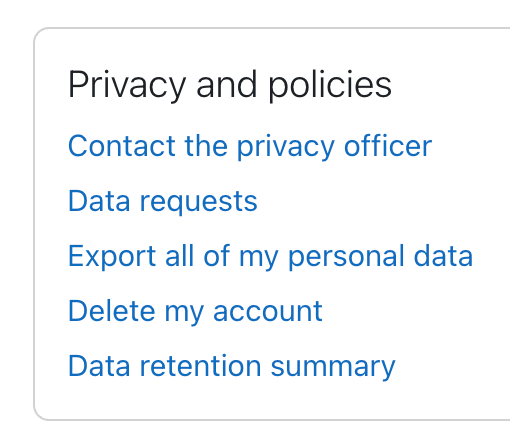
Moodle administrative screen for a user to choose different privacy options

The data privacy settings are at: Site administration > Users > Privacy and policies > Privacy settings.

The exported user data file is a zip file containing an index.html file for handy navigation of the data.

  • User data includes things such as recently accessed items, messages and notifications, draft files, the last access to each course, and log and session data.
  • Course data includes activity data such as assignment submissions and forum posts, role assignments grades.
  • There are other information categories such as Antivirus failures, user preferences, and autosave data that seem less useful.

Data registry

Moodle has a data registry system to control the retention length of different types of data. For example, student submissions to an assessment may need to be retained indefinitely to be able to provide evidence of student accomplishments, whereas general coursework such as forum posts might only be retained until graduation + 12 months.

The data registry enables categories (types of data) and purposes (the reasons for processing data) to be set for all content on the site, from users and courses down to activities and blocks. For each purpose, a retention period may be set. When a retention period has expired, the data is flagged and listed for deletion, awaiting admin confirmation.

Categories and purposes can be very granular and set at the individual activity level. This seems like a huge amount of work if you want to retain quiz data for a different amount of time than forum posts. The primary driver for this feature seems to be the GDPR and it requires considerable setup. Much of the terminology is GDPR-specific.
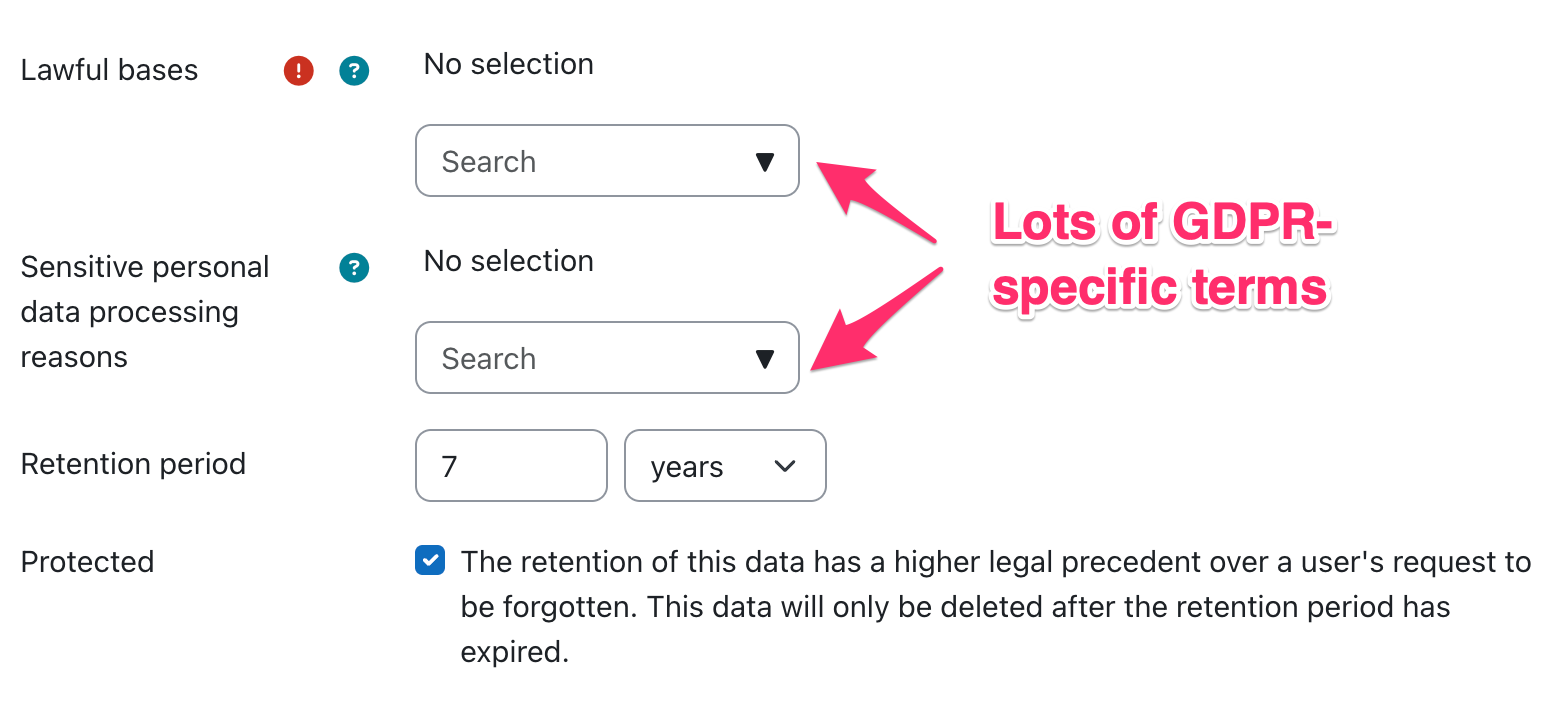
Configuration screen for data registry and data retention

In some cases, the data retention policy can override the user’s deletion request.

Summary

Turning on user data requests seems like it could be helpful for graduating students who might want to keep a copy of their Moodle content. However, enabling the permission shows both the export and deletion options. It’s not possible to just enable export without enabling deletion.

Turning on user deletion requests seems potentially problematic since some of the data is used by faculty (e.g. course evaluations for tenure decisions). The Data Registry looks quite complicated and only seems useful for schools that want to implement strict data retention policies

Safe Exam Browser integration within Moodle

With some campuses seeing more interest by some instructors to employ lockdown browsers, a deeper dive back into Safe Exam Browser was done by a collective of Moodle HackDoc Winter 2026 participants: Jason Alley (Lafayette College), Gerard Gadigian (Connecticut College), Jim Nicnick (Lafayette College), and Andrew Ruether (Swarthmore College). CLAMP previously looked at this tool during the Winter 2021 Hack/Doc.

Overview

Safe Exam Browser (SEB) is a browser application that locks computers into a secure, full-screen mode for online quizzes and exams. Its purpose is to prevent access to unauthorized websites, applications, and system functions on a student’s device while engaging with the exam to eliminate the likelihood of cheating. While the browser is running in full-screen mode, keyboard shortcuts, screen capturing, internet browsing, and all applications not allowed by the exam configuration are disabled. The browser cannot be exited until the exam has been submitted if the instructor applies the setting in the configuration.

SEB is a free, open-source application intended for use on devices running on Windows, Mac, and iOS operating systems.

What worked well

SEB works only with the Moodle Quiz activity. Therefore, the user interface (UI) for SEB is available only within the Moodle Quiz activity. The standard functions behave as expected. Some functions to note:

  • Enabling access to the camera and microphone: this function provides students the ability to use their device’s camera and/or microphone to complete a Moodle Quiz question (i.e., using WebRTC). This is not used to proctor or surveil students.
  • URL filtering: To allow students access to specific websites, it’s possible to enable URL filtering. To achieve this, the instructor needs to enable URL filtering, which is off by default, and then enter the allowed URL(s) in the “Expressions allowed” field. Each allowed URL should be listed on its own line and omit the protocol (https://). Because the SEB does not provide Forward and Back navigation like a typical browser, it’s important to create allowed links in the Moodle Quiz question to open in a new window/tab. We discovered it’s also important when URL filtering is enabled, to also include one’s Moodle domain (e.g., moodle.lafayette.edu/*) with the asterisk wildcard serving as a catch-all for all sites on the Moodle domain.

What worked, but not so well

  • Unexpected computer behavior: When SEB launches, it closes many applications on one’s computer and can leave browser windows/tabs in odd states requiring a refresh. The macOS version does not warn the user ahead of time–the Windows version does–that many applications will be closed. It is recommended to give the students forewarning that many applications will close and to save work prior to starting the quiz.
  • Download site: The default SEB download site, after the download begins, redirects one to a confusing SourceForge page with links to what may be malware. The license for SEB looks to allow an institution to host its own download files.
  • SEB templates: There is an option for templates to be used when configuring SEB. This is complicated by the fact that you cannot use the SEB utility to set up the templates. You must configure a quiz manually from within Moodle, and then download the configuration file from the quiz. Then the config file can be uploaded by a Moodle admin via Administration > Plugins > Activity modules > Quiz > Safe Exam Browser templates.

What didn’t work

  • Manually customizing the .seb file: Because the Moodle interface provides limited configurations, we attempted, unsuccessfully, to customize the .seb file, which serves as the configuration file for Safe Exam Browser. We wanted to see if it was possible to customize the .seb file to allow for the launching of applications like Word, which is not a configuration setting in Moodle Quiz. In our experience, the only way to successfully change the .seb file was to update the Moodle Quiz SEB settings.
  • Safe Exam Browser on iOS: The SEB iOS app didn’t provide any lockdown functions.
  • Safe Exam Browser on Android OS: There is currently no official Android compatible version of SEB.

Recommendations for using Safe Exam Browser

  • Set up a practice, no or low-stakes quiz in one’s course to ensure the students are able to access and take the quiz. This may also help reduce any anxiety surrounding the use of SEB.
  • Remind students that when SEB is launched, it will close many applications on their computer, so they should save any work in progress to ensure nothing is lost.
  • Use for in-person, proctored exams to provide in-person support should questions arise.
  • Only use built-in Moodle Quiz Safe Exam Browser functions–don’t try to customize the .seb file manually.
  • If including links in questions, set them to “Open in new window” because Safe Exam Browser doesn’t include navigation buttons to go back. Use “Expressions allowed” to limit access to specific websites:
    • Don’t include https:// when adding URLs to the list
    • Each URL should be listed on its own line
    • Add /* after one’s Moodle domain to ensure access to all Moodle access is available (e.g., moodle.lafayette.edu/*)
    • Add /* after domain to allow for access to all pages on a site
  • Have a backup plan such as having extra computers on hand for those students who may not have a compliant device, or use Blue Books.