CLAMP held its Winter 2026 Hack/Doc Fest at Connecticut College in New London, Connecticut. This was CLAMP’s second visit to Conn College, after the Winter 2024 Hack/Doc Fest. The primary focus this time around was the new Moodle 5.1 release, plus follow-up on the issues with the question bank in Moodle 5.0. In addition to this overview, please see our separate posts on data privacy and the safe exam browser.
Issues specific to Moodle 5.1
Question bank
The changes to the question bank in Moodle 5.0 required their own separate blog post to hash out. On the whole, folks felt better about the question bank in Moodle 5.1. That said, there are still some issues to be aware of.
Sharing question banks from the course level
We evaluated how to share question banks (QB) between courses now that there are no category-level question banks. In this example, we have Course 1 and Course 2 taught by Teacher 1 and Teacher 2. Teacher 1 can create a course-level QB in Course 1. Then they join Course 2 as a Teacher and import a quiz from Course 1. This quiz has 3 questions from the Course 1 course-level QB. Teacher 2 cannot edit those questions. Course 2 also does not have full access to the course-level QB in course 1.
If Teacher 1 edits a question in this quiz from their one in Course 1, it is also changed in the instance in Course 2. In the case that the quiz has been attempted, the Teacher 1 can change the the question. The student who had attempted the quiz still sees the original question, but future students will get the new version of the question unless the faculty explicitly chooses the question version in the Quiz settings.
If Teacher 2 duplicates the quiz, then they get a copy of the quiz but the questions are copied into a new “System shared question bank” in Course 2. Teacher 2 can edit that copy of those questions. But it is strange that they are dumped into a “System shared question bank” rather than in a quiz-specific question bank.
Restoring quizzes from Moodle 4.5 to Moodle 5.1
There are still some challenges with importing quizzes from Moodle 4.5 to Moodle 5.1. We tested with quizzes from a school’s production 4.5 instance. The first issue is that we saw a number of non-fatal errors that nevertheless had the red background that usually indicates a more serious issue:
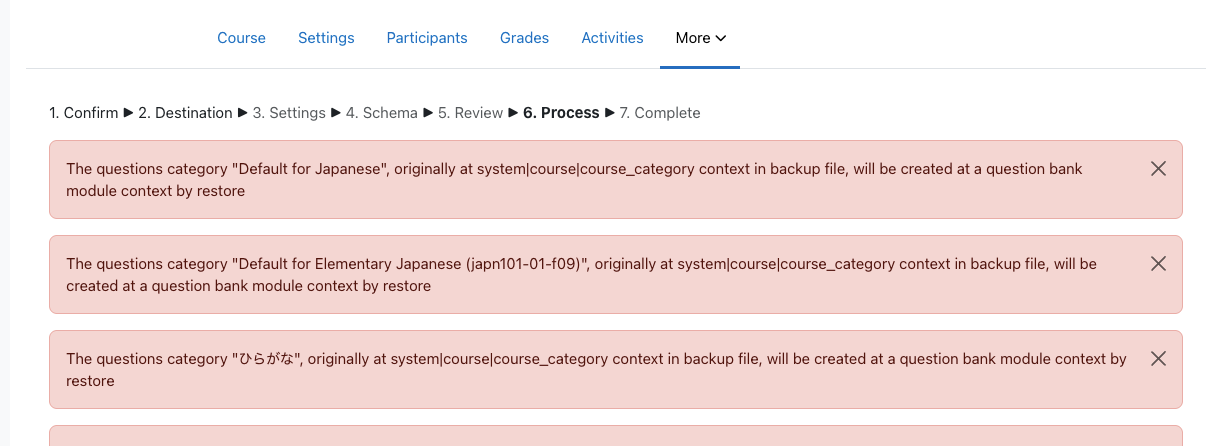
These are all questions that were heretofore stored at the category level. Some of these questions contained Random questions from specific categories. The questions appear to load, but clicking on the “See questions” link on the Random Questions causes a fatal error:
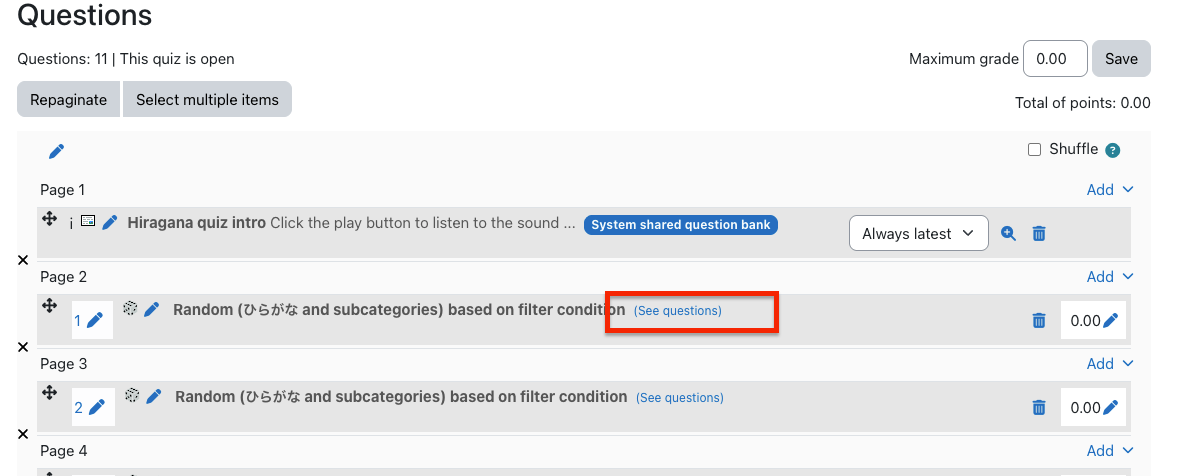
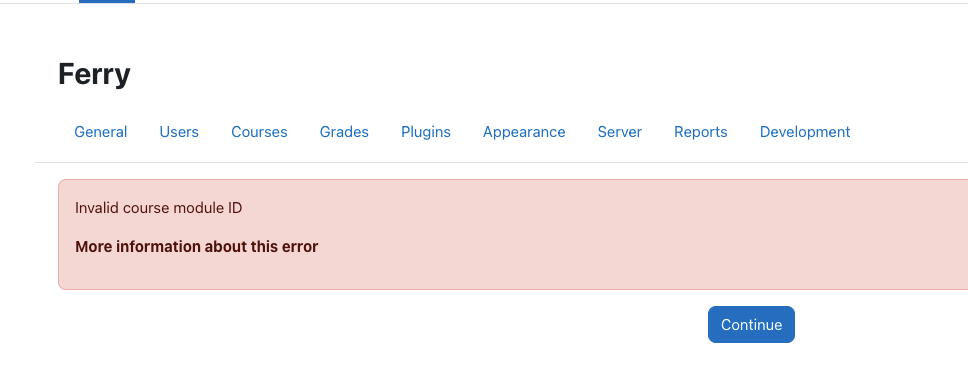
As of yet, we cannot view the list of questions in the categories for these quizzes. The course-level question bank shows the list of quizzes, but clicking on them takes you to the quiz itself, and does not show you the list of questions in the category from which these Random questions are pulled.
Regular multiple-choice questions are labeled with “System shared question bank.” However, if I go to the course-level question banks, even though I see a System shared question bank (created from previous testing), the imported multiple-choice questions are not there. Site home does not have any question banks.
Conclusion: the questions are clearly there. But they are “hidden” in some kind of secret question bank. Use extreme caution when importing quizzes from previous versions into Moodle 5.1.
Activity overview
Activity overview is another feature that saw changes in Moodle 5.0 and was further improved in 5.1. It’s been extended to include dates and completion information for BigBlueButton, Choice, Database, Forum, Glossary, H5P, Lesson, SCORM and Quiz in addition to Assignment, Feedback, Resources, and Workshop.
Admin search improvements
Moodle carried out research into the information architecture (IA) of the site administration interface. Among other outcomes, this research identified a need to improve search within the administrative interface. The first improvement to land is MDL-85518, returning search results in a more intuitive order.
Server configuration
For self-hosted schools, Moodle has made a major change in its code layout for the 5.1 version. This is done to permit the introduction of the “router” feature and prettier URLs. Most of the public code that was previously in the root of the code base is now in a public subdirectory. Your config.php still lives in the root. Also still in the root is admin/cli/ with various tools, including cron.php. You’ll need to make various one-time adjustments to your deployment to accommodate these changes. Included below is the Apache configuration for CLAMP’s Moodle 5.1 test environment:
<VirtualHost *:443>
    ServerAdmin admin@clamp-it.org
    ServerName ferry.clamp-it.org
    DocumentRoot /var/www/ferry/site/public

    ErrorLog ${APACHE_LOG_DIR}/ferry-error.log
    CustomLog ${APACHE_LOG_DIR}/ferry-access.log combined

    <Directory "/var/www/ferry/site/public">
        AllowOverride None
        Require all granted
        DirectoryIndex index.php
        FallbackResource /r.php
        <FilesMatch \.php$>
            SetHandler "proxy:unix:/run/php/php8.3-fpm-ferry.sock|fcgi://ferry/"
        </FilesMatch>
    </Directory>

    <Proxy "fcgi://ferry/">
    </Proxy>

    SSLCertificateFile /etc/letsencrypt/live/ferry.clamp-it.org/fullchain.pem
    SSLCertificateKeyFile /etc/letsencrypt/live/ferry.clamp-it.org/privkey.pem
    Include /etc/letsencrypt/options-ssl-apache.conf
</VirtualHost>
Section limit deprecation
Moodle has deprecated the maxsections configuration setting; going forward there will be no limit to the number of sections a teacher can add to a course. Out of curiosity, we used Moodle WebService Manage Sections plugin to bulk add 500 sections to a course (ironically, that plugin hasn’t be updated to reflect the change to maxsections). The course and navigation were functional afterwards.
Manual enrollment notifications
Manual enrollment notifications are sent immediately regardless of whether the enrollment is active. This has to do with how enrollment status is tracked in the database. There are only two states: enrolled or suspended. The start and end times are tracked separately. Moodle calculates whether an enrollment is active based on the time constraints, but it doesn’t go back to the database. It would be onerous for cron to check every minute whether an enrollment has become active.
That does leave the question of the message to the user. The default message for a new manual enrollment, as defined in the language string enrol/customwelcomemessageplaceholder, is this:
Hi {$a->firstname}, you are enrolled in the course {$a->coursename}.
Moodle allows teachers to override this on a per-course, per-enrollment method basis. It’s buried in the course navigation, in Course > Participants > Enrolment methods > Self enrolment (or Manual enrolment), if you edit the method. Moodle provides numerous placeholders for programmatic customization:
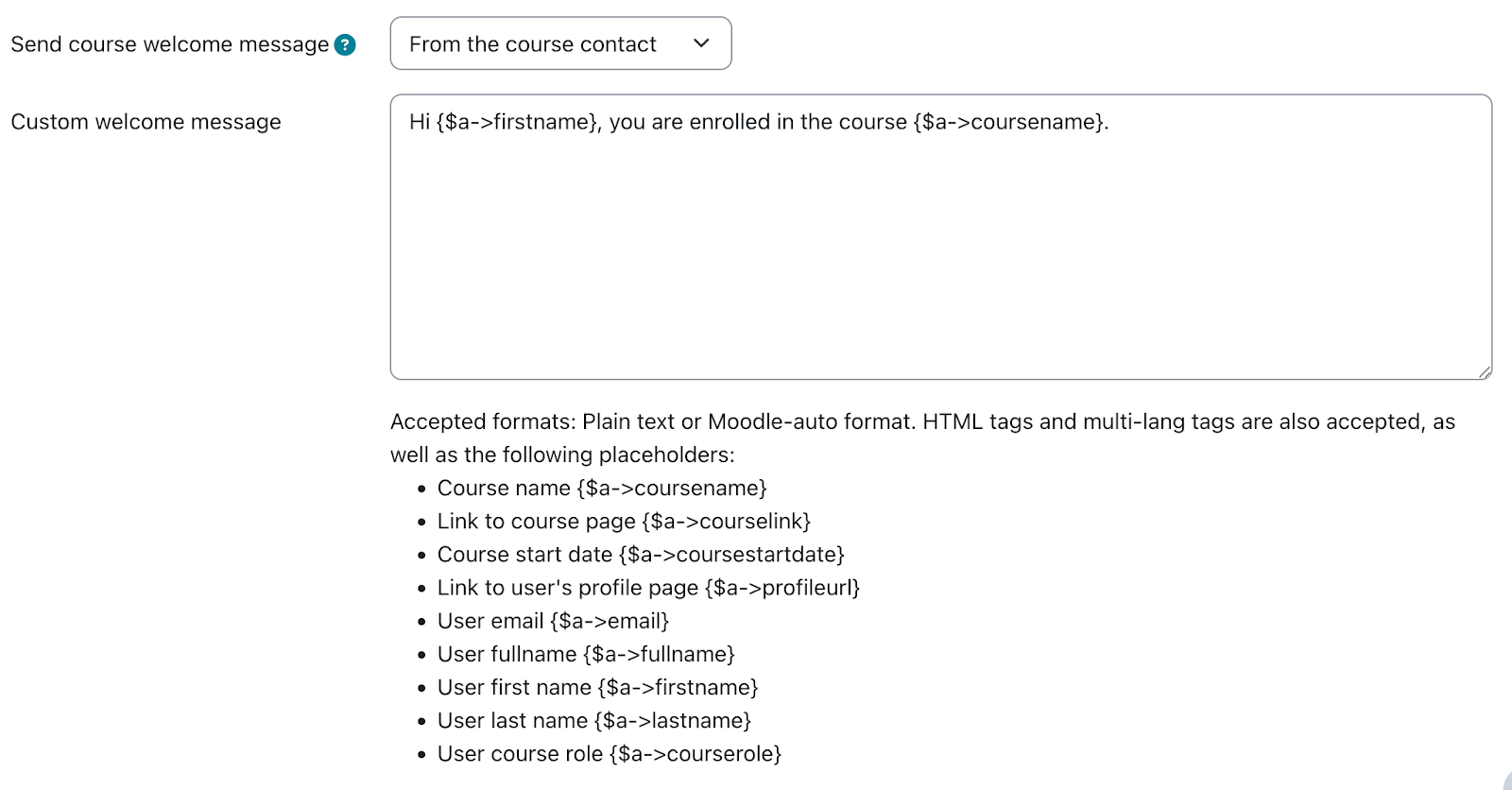
One thing that’s missing here is the enrollment start date, as opposed to the course start date. Moodle 5.1 added the ability to set an arbitrary state date for a manual enrollment. We’ve proposed a change (MDL-87665) to make that value available to the message customization.
Activity chooser
The activity chooser has a new look and feel. You can still “star” activities, which are now grouped functionally: Assessment, Collaboration, Communication, Resource, and Interactive content. These categories are fixed and can’t be modified. New activities are added to “All.”
Other issues
Phantom grading changes in the gradebook
There is a bug in Moodle that can lead to unexpected changes in the gradebook. When using Google Chrome, with grader editing turned on, if a user uses two-finger scroll or mouse wheel scroll they can change grades unintentionally if the cursor was hovering over a grade cell. On CLAMP’s development environment we could only reproduce this if the user’s browser had the Lastpass extension enabled. Macalester can reproduce the issue in production without the extension.
Core is tracking the issue in MDL-86837. A workaround is to add the following Javascript snippet to Site administration > Appearance > Additional HTML section > Before BODY is closed:
<script>
document.addEventListener("wheel", function(event) {
if (document.activeElement.type === "number") {
document.activeElement.blur();
}
});
</script>
Ongoing issues with group overrides on assignments
We documented some issues with group overrides in assignments at the Summer 2025 Hack/Doc Fest (“Overrides don’t appear properly at times“). There’s another issue, MDL-81004, related to how overrides appear on the timeline in the dashboard.
Here’s an example of the issue in question. Create an assignment with a default due date of midnight, 7 days from today. Create a Group Override and change the due date to be one month later. (Don’t do this testing in February because the shorter month might make it weird). This means the overridden due date is more than 30 days into the future.
Now, log in as a student in the date override group and navigate to the dashboard (in default config) so that the Timeline and Calendar are visible. Given that the calendar is showing the current month and the timeline is set to next 7 days; on the Timeline and calendar the original due date is shown, not the overridden date.
As the student, change the timeline to next 30 days, and the wrong due date (not applying the override) will still appear on the timeline. Still as the student, change the calendar to next month and timeline to next 60 days. Calendar and timeline will now show the override.
Quiz pre-creation
Moodle added a feature in 5.0 to “pre-create” quiz attempts prior to the quiz becoming available. This can potentially reduce performance issues with large quizzes. This must be enabled in Site administration > Plugins > Quiz > General settings. A range of 1-24 hours may be selected for when attempts are pre-created. These settings are sitewide and cannot be changed by teachers. Once the attempts are created the student receives a notification and the quiz cannot be modified.
Data privacy
Please see Using the Moodle data privacy feature for data export for a discussion of using the data privacy features for student data export.
Safe exam browser
Please see Safe Exam Browser integration within Moodle for a discussion of the current state of the Safe Exam Browser integration in Moodle.
Sanitizing courses of student data
We tested the possibility of retaining a course for historical reasons but removing the student data after a period of time because of FERPA concerns over data retention. Moodle has a course reset function available in the interface. The moosh cli package includes a course-reset command which permits automating this functionality. The course-reset command may be combined with the course-list command to output all courses from a category and then reset them:
moosh course-list -c 3 -i | xargs -n1 moosh course-reset
Note that course-list will traverse the subcategories of a category and retrieve all courses. Resetting a course purges course data but retains enrollments.
Error when adding media to the front page
Dragging and dropping an image to the course home page triggers an error and fails. This worked in Moodle 5.0. We reported this as MDL-87661; core has already identified the root cause and proposed a fix.
New plugins from CLAMP schools
LTI Tools API
Reed has developed a new plugin that provides a suite of web services for working with LTI tools on a Moodle installation.
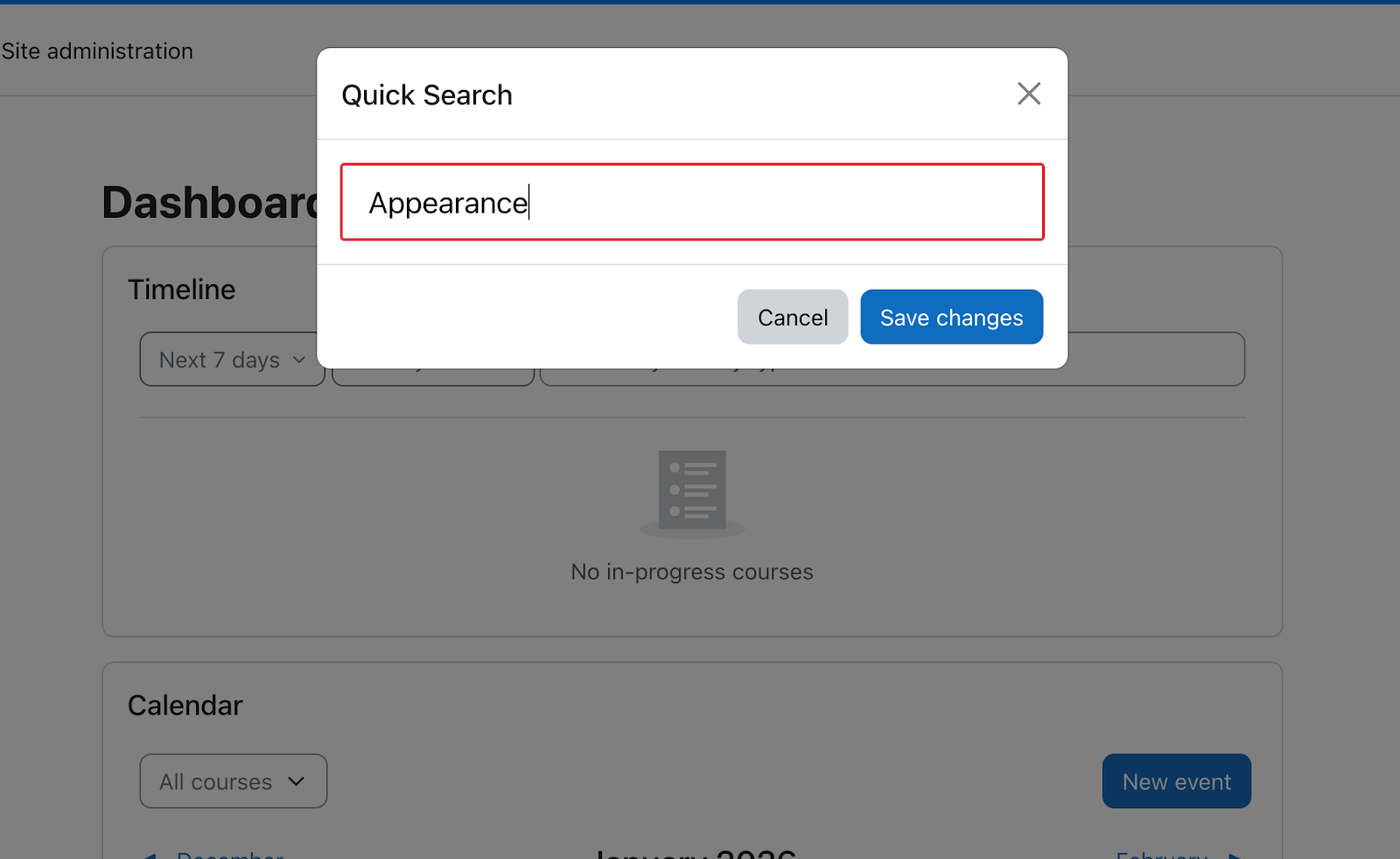
Quick Search Plugin
Swarthmore has developed a new plugin that adds an admin menu search to every page. It can be invoked by pressing Ctrl + Shift + P.