Moodle HQ has redesigned the login page for Moodle 5.2. If you only enable SSO authentication methods (CAS, Shibboleth), read no further. There are a few aspects to the redesign that bear mentioning, for both the users and administrators. We’re going to discuss four: the new design itself, including the background image; the placement of login instructions; styling the page; and the rearrangement of login settings in Site administration.
The login page
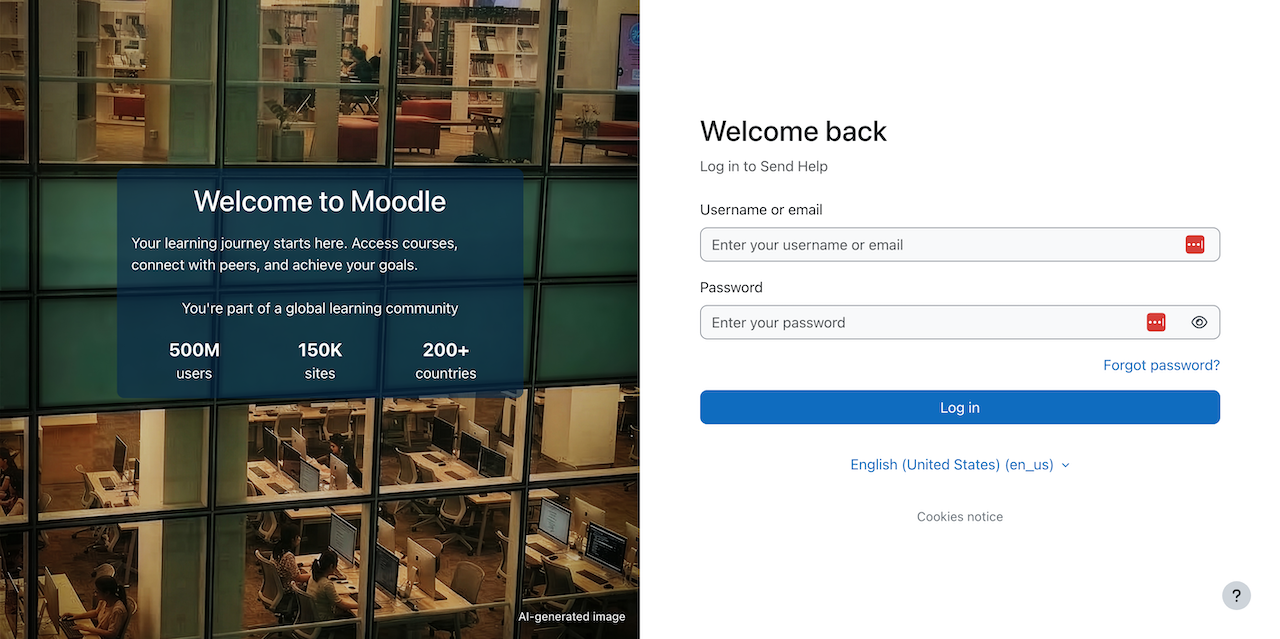
The new login page is a two-pane design and looks the same in both Boost and Classic. The left-hand pane contains a default background image. The image shows a typical academic library setting. It’s AI-generated and marked as such. Superimposed over the image are the login instructions for the site. If no instructions are defined, Moodle displays a “welcome to Moodle” marketing blurb. On the right-hand pane is the typical login form. On mobile, the design collapses to a single column. The image is not displayed, and the login instructions are displayed below the form.
The background image
Both the Boost and Classic themes ship pix/login_background.jpg as an asset (see MDL-88206 for implementation notes). It’s a 1.5 MB jpeg; its dimensions are 1440x2048. The “AI-generated image” text is a watermark applied by CSS for the default image only. This text is not otherwise exposed to the user and isn’t accessible. To override the image, you upload your own image in the “Login page background image” setting for the appropriate theme. If you upload a landscape-oriented image, Moodle will crop the upload.
Login settings
Moodle 5.2 has consolidated various login settings under Site administration > General > Login settings (MDL-87553). Most of these were previously under Site administration > Plugins > Authentication > Manage authentication or Site administration > General > Security > Site security settings. Given the redesign, the most important of these is “Instructions”; it’s not a new setting, but it now occupies a prominent place in the design for desktop users. The field supports rich text; the form allows you to drag-and-drop images but they won’t be displayed.
Styling notes
For the desktop view, the transparent box behind the login instructions text does have its own CSS tag if you want to have it not match the main theming. The CSS id is .login-layout-left-content.
Putting it all together
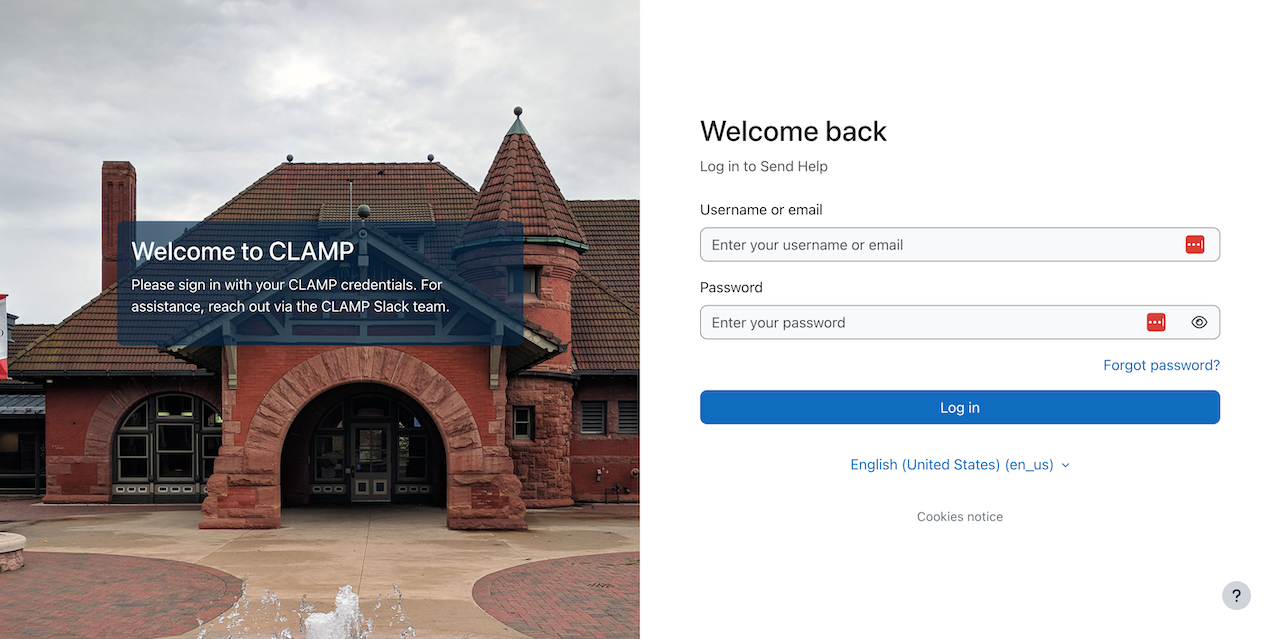
Below is an example of a revised login page. Instead of the library is a cropped view of the Kalamazoo Transportation Center. Superimposed are login instructions for the test instance we used at the recent Kalamazoo Hack/Doc Fest.